The Xbox Series S controller refines an already excellent design, offering enhanced precision, comfort, and versatility for next-gen gaming. Key improvements include a hybrid D-pad, textured grips, a dedicated Share button, and expanded compatibility across Xbox consoles, PC, iOS, and Android devices, making it a meticulously crafted instrument for immersive gameplay.
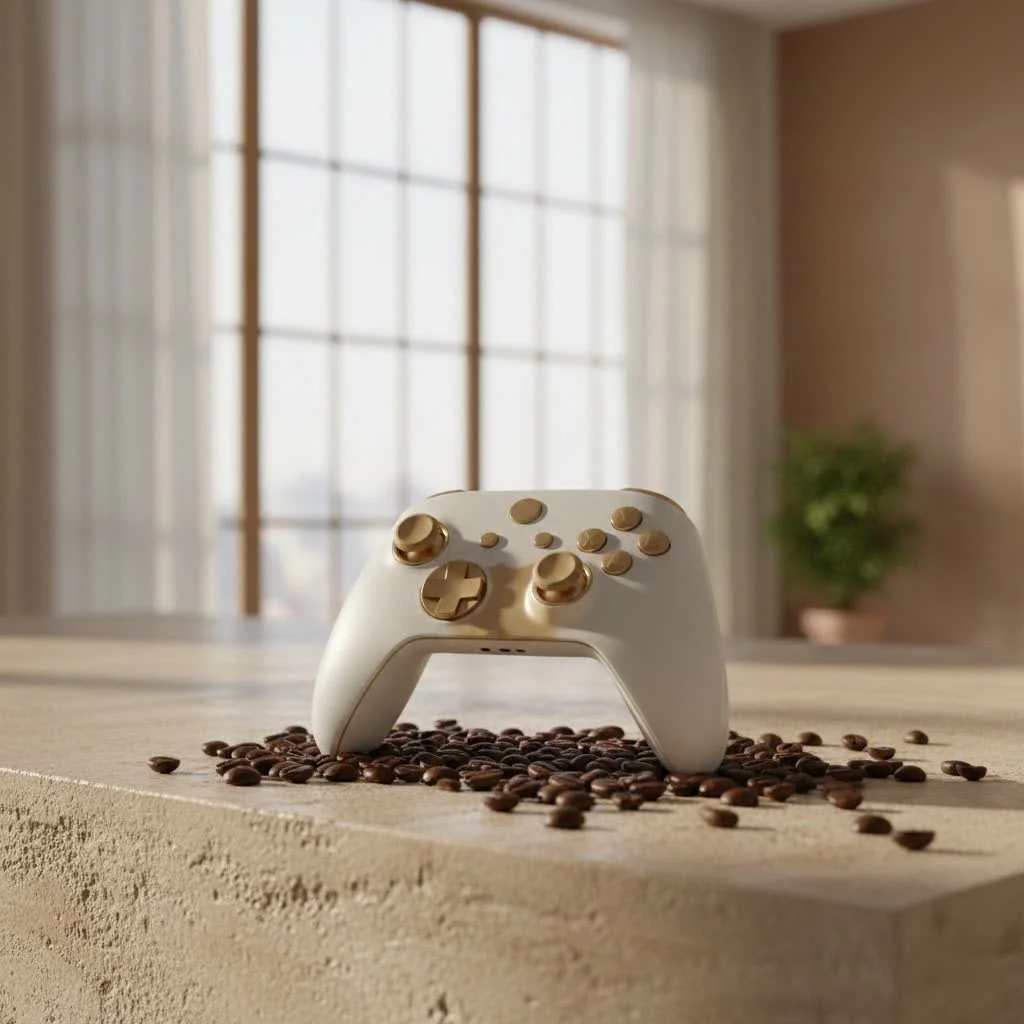
What Makes the Xbox Series S Controller Stand Out?
The Xbox Series S controller might look familiar at first glance, but a closer inspection reveals thoughtful enhancements that significantly improve the user experience. It’s all about those details that collectively improve your game.
A Familiar Feel, Refined Ergonomics
Microsoft didn’t reinvent the wheel with the Series S controller’s fundamental shape, and that’s a good thing. The comfort gamers have come to expect from Xbox controllers is still very much present. However, the design team made subtle adjustments, including a slightly smaller overall profile that makes it feel more accommodating for a wider range of hand sizes. The most immediately noticeable improvement is the textured grip applied to the triggers, bumpers, and the back case. This isn’t just for show; it provides a much more secure and satisfying hold, especially during those intense, sweaty-palmed moments of competitive play. You’ll feel a noticeable difference, reducing slippage and increasing control, even when your hands are working overtime.
The Revolutionary Hybrid D-Pad
One of the most talked-about upgrades on the Xbox Series S controller is its new hybrid D-pad. Moving away from the traditional cross-shaped D-pad, this design beautifully blends elements of both a classic D-pad and the faceted, dish-like D-pad found on the Xbox Elite controllers. What does this mean for you? It offers exceptional precision for directional inputs, which is critical in fighting games, platformers, and anything requiring quick, accurate movements. Whether you’re pulling off intricate combos or navigating complex menus, the hybrid D-pad provides a tactile and responsive feel that simply wasn’t available in previous standard controllers. It’s a major upgrade for control enthusiasts.
The Dedicated Share Button: Instant Glory
In an age where sharing your epic gaming moments is as much a part of the experience as playing them, the dedicated Share button on the Xbox Series S controller is a welcome addition. No more fumbling through menus or holding down multiple buttons. A single press instantly captures a screenshot, while a longer press records your last 30 seconds (or more, depending on your settings) of gameplay. This streamlines the process of sharing your highlights with friends and the wider gaming community, making it easier than ever to immortalize those incredible plays or hilarious mishaps. “As someone who’s spent countless hours dissecting controller design, the subtle refinements in the Xbox Series S controller, especially the hybrid D-pad and improved textured grips, make a significant difference in both comfort and competitive performance,” says Dr. Elias Vance, Lead Game Hardware Analyst at Vntut.com.
Enhanced Connectivity and Reduced Latency
|
Our Picks for the Best Game Controller in 2026
As an Amazon Associate I earn from qualifying purchases.
|
||
| Num | Product | Action |
|---|---|---|
| 1 | EasySMX X15 PC Controller - Enhanced Wireless Bluetooth Controller with Hall Joysticks/Hall Triggers/RGB Lighting - No Stick Drift, No Dead Zone - Work for Windows PC, Android, Steam and Switch |

|
| 2 | ManbaOne Interactive Screen Wireless Gaming Controller for PC/Switch/Switch 2/iOS/Android,Hall Effect Stick & Trigger,RGB Lighting,Remappable Buttons,1800mAh with Charging Dock (Black) |
|
| 3 | Xbox Elite Series 2 Core Wireless Gaming Controller – White Series X-S, One, Windows PC, Android, and iOS |
|
| 4 | Spican Switch 2 Controller, Switch 2 Accessories Wireless Pro Controller with No-drift Hall Effect Joystick, 4 RGB Mode, 10H+ Battery, Turbo&Macro, Full-Size Hand-Curve Design Comfort for Nintendo Switch 2 Games |
|
| 5 | 8BitDo Ultimate 2C Wireless Controller for Windows PC and Android, with 1000 Hz Polling Rate, Hall Effect Joysticks and Triggers, and Remappable L4/R4 Bumpers (Green) |
|
| 6 | Logitech G F310 Wired Gamepad Controller Console Like Layout 4 Switch D-Pad PC - Blue/Black |
|
| 7 | 8BitDo Ultimate 2 Wireless Controller for Windows PC, Apple, Steam & Android, Gaming Controller with TMR Joysticks, Hall/Tactile Triggers, Motion Control, RGB Fire Ring, 1000Hz Polling Rate, Black |
|
| 8 | AceGamer Aurora II 2.4G Wireless Bluetooth Controller for PC/Android/Switch/iOS/Switch 2/Steam Deck with Rotary Motors, RGB Hall Effect Joysticks - Upgraded PC Gaming Controller and Back Buttons Lock |
|
| 9 | PlayStation DualSense® Wireless Controller - Midnight Black |
|
| 10 | VOYEE Switch Controllers Compatible with Switch/Lite/OLED/PC Windows, 1000mAh Programmable RGB Lightning LED, Wireless Pro Controller with One Key Pairing/Wake Up/Turbo/Vibration |
|
The Xbox Series S controller boasts advanced connectivity features to ensure a smooth, responsive gaming experience. It utilizes Microsoft’s proprietary Xbox Wireless protocol for low-latency connections to your console. But that’s not all; it also incorporates Bluetooth Low Energy (BLE), significantly expanding its compatibility with a broader range of devices. Microsoft introduced Dynamic Latency Input (DLI), a technology designed to reduce input lag by more closely synchronizing controller inputs with what’s happening on your screen. This means your actions register faster, giving you a competitive edge and a more immediate, satisfying response from your games. The inclusion of a USB-C port for wired connection and charging (with a rechargeable battery pack) is another modern touch, offering faster data transfer and more convenient power options compared to older micro-USB standards.
Beyond the Console: Versatile Compatibility
One of the greatest strengths of the Xbox Series S controller is its impressive versatility. It’s not just for your Xbox Series S or X console; it’s a powerful tool for a multitude of gaming platforms.
Seamless Gaming Across Devices
This controller truly shines when you consider its broad compatibility. Naturally, it works perfectly with the Xbox Series X|S and Xbox One consoles, allowing you to upgrade your older setup with a new-gen controller. But its reach extends far beyond that. Thanks to Bluetooth Low Energy, you can easily pair your Xbox Series S controller with:
- PC (Windows 10/11): Enjoy your favorite PC games with familiar and precise controls.
- iOS Devices (iPhone, iPad): improve your mobile gaming experience with a physical controller.
- Android Devices: Play countless Android games with console-level accuracy.
- Smart TVs: Many modern smart TVs now support Bluetooth controllers, turning your TV into a gaming hub.
This expansive compatibility makes the Series S controller an incredibly valuable investment for any multi-platform gamer.
Connecting Your Controller: A Quick Guide
Connecting your Xbox Series S controller is straightforward, regardless of the device.
- For Xbox Consoles: Press the pairing button on the top of the controller and then the pairing button on your console. The lights will flash and then become solid when connected.
- For PC (Wireless): Ensure your PC has Bluetooth. Hold the pairing button on the controller until the Xbox button flashes rapidly. Then, go to your PC’s Bluetooth settings and select “Xbox Wireless Controller.” For the best experience, consider the Xbox Wireless Adapter for Windows.
- For PC (Wired): Simply plug in a USB-C cable from the controller to your PC.
- For Mobile Devices: Hold the pairing button on the controller. On your phone/tablet, go to Bluetooth settings and select “Xbox Wireless Controller.”
Powering Your Play: Battery Life and Options
The Xbox Series S controller continues to use AA batteries by default, typically offering around 20-30 hours of gameplay, though this can vary depending on usage patterns and the quality of the batteries. While some gamers prefer this option for the flexibility of swapping out batteries instantly, many opt for rechargeable solutions for convenience and environmental reasons. You can purchase official Xbox rechargeable battery packs that fit seamlessly into the controller, often providing similar battery life to AA batteries and allowing for easy recharging via the controller’s USB-C port, even while playing. Investing in a good quality rechargeable pack or a set of high-capacity rechargeable AA batteries is highly recommended for an uninterrupted gaming experience.
Maintaining Your Gaming Edge: Tips for Longevity
To ensure your Xbox Series S controller remains in peak condition for years of gaming, a little care goes a long way.
- Keep it Clean: Dust, sweat, and grime can accumulate in the crevices and around the buttons. Regularly wipe down your controller with a soft, slightly damp cloth. For tougher spots, a cotton swab dipped in rubbing alcohol can work wonders around buttons and analog sticks.
- Firmware Updates: Microsoft frequently releases firmware updates for its controllers that can improve performance, add features, and fix bugs. Connect your controller to your Xbox console or a PC with the Xbox Accessories app installed to check for and apply any available updates. This is crucial for optimal performance.
- Proper Storage: When not in use, store your controller in a safe place where it won’t be dropped, crushed, or exposed to extreme temperatures. A controller stand can be a stylish and practical solution.
- Addressing Potential Issues: While durable, like all electronics, controllers can develop issues over time. If you experience minor stick drift, sometimes a thorough cleaning around the base of the thumbstick can help. For persistent issues, contacting Xbox support or exploring warranty options is advisable.
Frequently Asked Questions
Q: Is the Xbox Series S controller compatible with my old Xbox One console?
A: Yes, absolutely! The Xbox Series S controller is fully backward compatible with all Xbox One consoles, allowing you to enjoy its enhanced features on your previous-generation hardware.
Q: Does the Xbox Series S controller use rechargeable batteries?
A: Out of the box, the controller uses two standard AA batteries. However, you can purchase an official Xbox rechargeable battery pack (or third-party alternatives) that can be charged via the controller’s USB-C port.
Q: How do I connect the Xbox Series S controller to my PC?
A: You can connect it wirelessly via Bluetooth (if your PC has it) by holding the pairing button, then selecting it in your PC’s Bluetooth settings. Alternatively, you can use an Xbox Wireless Adapter for Windows or simply plug it in directly with a USB-C cable.
Q: What is the main difference between the Xbox Series S controller and the Xbox One controller?
A: Key differences include a redesigned hybrid D-pad for improved precision, a dedicated Share button for easy content capture, textured grips on the triggers, bumpers, and back case, and an upgrade to a USB-C port. The overall ergonomics have also been subtly refined.
Q: Can I customize button mappings on the Xbox Series S controller?
A: Yes, you can remap buttons and customize other settings using the Xbox Accessories app on your Xbox console or a Windows PC. This allows you to tailor the controller to your specific gaming style.
Q: How long does the battery typically last on the Xbox Series S controller?
A: When using standard AA batteries, you can expect around 20-30 hours of gameplay. Battery life can vary based on usage, features like rumble intensity, and the quality of the batteries. Rechargeable packs offer similar durations.
Conclusion
The Xbox Series S controller is more than just a peripheral; it’s a shows refined design and user-centric innovation. From its improved ergonomics and the game-changing hybrid D-pad to the convenient Share button and versatile multi-platform compatibility, it represents a significant step forward in gaming control. Whether you’re a casual player or a hardcore enthusiast, this controller offers an experience that is both familiar and refreshingly new, enhancing every flick of the stick, every press of a button, and every shared triumph. Investing in an Xbox Series S controller means investing in a superior, more enjoyable, and more connected gaming journey.
Frequently Asked Questions
Is the Xbox Series S controller compatible with my old Xbox One console?
Yes, the Xbox Series S controller is fully backward compatible with all Xbox One consoles, allowing you to enjoy its enhanced features on previous-generation hardware. This ensures a seamless upgrade path for existing Xbox One owners.
Does the Xbox Series S controller use rechargeable batteries?
Out of the box, the Xbox Series S controller uses two standard AA batteries. However, users can purchase an official Xbox rechargeable battery pack or third-party alternatives that can be charged conveniently via the controller's USB-C port.
How do I connect the Xbox Series S controller to my PC?
You can connect the Xbox Series S controller to your PC wirelessly via Bluetooth by holding the pairing button and selecting it in your PC's Bluetooth settings. Alternatively, use an Xbox Wireless Adapter for Windows or plug it in directly with a USB-C cable for a wired connection.
What is the main difference between the Xbox Series S controller and the Xbox One controller?
Key differences include a redesigned hybrid D-pad for improved precision, a dedicated Share button for easy content capture, textured grips on the triggers, bumpers, and back case, and an upgrade to a USB-C port. The overall ergonomics have also been subtly refined for better comfort.
Can I customize button mappings on the Xbox Series S controller?
Yes, you can remap buttons and customize other settings using the Xbox Accessories app on your Xbox console or a Windows PC. This allows you to tailor the controller to your specific gaming style and preferences.
How long does the battery typically last on the Xbox Series S controller?
When using standard AA batteries, the Xbox Series S controller typically offers around 20-30 hours of gameplay. Battery life can vary based on usage, features like rumble intensity, and the quality of the batteries, with rechargeable packs providing similar durations.
Get our weekly buyer guide
Practical specs, not advice. Unsubscribe anytime.

While I appreciate the refined ergonomics and the hybrid D-pad, I’ve noticed a slight stick drift on my left analog stick after only a month of use. It’s not constant, but it’s enough to be annoying in certain games. Hopefully, it’s just an isolated issue, as the rest of the controller feels great.
The dedicated Share button on this controller is super handy. I used to fumble with menus to grab screenshots or clips, but now it’s just a quick press. It’s a small addition, but it definitely streamlines sharing those epic moments with friends. The overall comfort is still top-notch, as expected from Xbox.
I’ve been using the Xbox Series S controller for a few weeks now, and the textured grips are a game-changer. My old controller would get slippery during intense sessions, but this one stays firmly in my hands. It really makes a difference for longer gaming marathons, especially with competitive titles.
I love how versatile the Xbox Series S controller is. I primarily use it with my PC for a lot of indie games, but it’s also great for quick sessions on my Android tablet when I’m traveling. The expanded compatibility is a huge plus, making it my go-to controller for almost everything.