Hey there, fellow gamers! As someone who’s spent countless hours navigating virtual worlds, I can tell you that a great controller isn’t just an accessory; it’s an extension of yourself. And when we talk about iconic gamepads, the PlayStation 4 controller, officially known as the DualShock 4, undeniably stands out. More than just a simple input device, the DualShock 4 redefined what a console controller could be, blending familiar comfort with innovative features that changed how we interact with our games. Whether you’re a seasoned PlayStation veteran or new to the ecosystem, understanding the nuances of your PlayStation 4 controller can truly elevate your gaming experience.
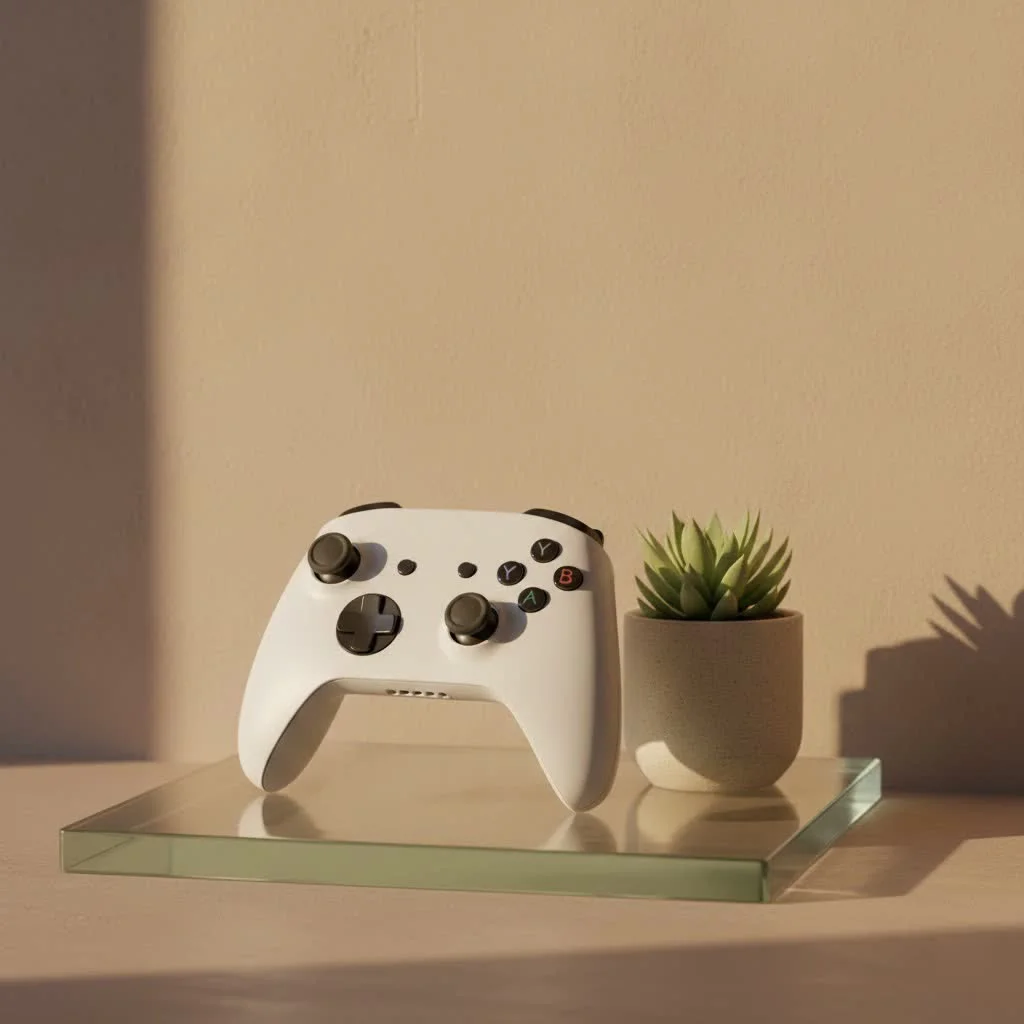
The Evolution of Control: What Makes the PS4 Controller Stand Out?
The DualShock 4 wasn’t just another iteration; it was a significant leap forward in controller design, carefully balancing the classic PlayStation feel with groundbreaking innovations. It maintained the instantly recognizable symmetrical stick layout but refined almost every other aspect. For expert gaming controller reviews on this site.
A Fresh Design for Enhanced Grip and Feel
One of the first things you notice about the PlayStation 4 controller is its refined ergonomics. Sony listened to feedback and made crucial adjustments that greatly improved comfort during long gaming sessions. The analog sticks received a concave design, similar to some competitor controllers, which provided a more secure and comfortable grip for your thumbs, reducing slippage. The triggers (L2/R2) and shoulder buttons (L1/R1) were reshaped for better finger placement and responsiveness, giving you more precise control in critical moments. Even the hand grips were made thicker and textured, enhancing the overall feel and preventing the controller from slipping even when your hands get a little sweaty during an intense boss fight. This thoughtful redesign made the DualShock 4 a joy to hold, even for hours on end.
Beyond Buttons: Innovative Features
The PlayStation 4 controller packed a punch with several new features that added depth and immersion to gameplay:
- Integrated Touchpad: Located prominently on the front, this two-point capacitive touchpad wasn’t just for show. It allowed for new input methods, from swiping through menus to unique in-game interactions, and it was even clickable, acting as an extra button.
- Light Bar: A vibrant LED light bar sits on the top of the controller. Initially used for player identification, changing color to indicate which player you are, it also provides crucial in-game feedback, such as a character’s health status or special abilities. When paired with the PlayStation Camera, it even enables motion tracking for certain games.
- Built-in Mono Speaker: Imagine sound effects like radio chatter or a distant enemy’s footsteps coming directly from your controller! The integrated speaker brought a new layer of immersion, placing you right in the heart of the action.
- Headset Jack: A standard 3.5mm TRRS connector meant you could easily plug in your favorite headset for private audio and crystal-clear voice chat with friends, eliminating the need for separate adapters.
- Motion Sensors (SixAxis): Building on previous generations, the DualShock 4 featured highly sensitive accelerometers and gyroscopes. These allowed for intuitive motion control in compatible games, letting you tilt, roll, and twist your PlayStation 4 controller to navigate or interact with game elements.
- Enhanced Vibration: While rumble motors were nothing new, the DualShock 4’s dual actuators delivered more nuanced and impactful haptic feedback, making every explosion, collision, or subtle texture feel more real in your hands.
Sharing Your Epic Moments: The SHARE Button Revolution
|
Our Picks for the Best Game Controller in 2026
As an Amazon Associate I earn from qualifying purchases.
|
||
| Num | Product | Action |
|---|---|---|
| 1 | AceGamer Aurora II 2.4G Wireless Bluetooth Controller for PC/Android/Switch/iOS/Switch 2/Steam Deck with Rotary Motors, RGB Hall Effect Joysticks - Upgraded PC Gaming Controller and Back Buttons Lock |

|
| 2 | EasySMX X15 PC Controller - Enhanced Wireless Bluetooth Controller with Hall Joysticks/Hall Triggers/RGB Lighting - No Stick Drift, No Dead Zone - Work for Windows PC, Android, Steam and Switch |
|
| 3 | VOYEE Switch Controllers Compatible with Switch/Lite/OLED/PC Windows, 1000mAh Programmable RGB Lightning LED, Wireless Pro Controller with One Key Pairing/Wake Up/Turbo/Vibration |
|
| 4 | ManbaOne Interactive Screen Wireless Gaming Controller for PC/Switch/Switch 2/iOS/Android,Hall Effect Stick & Trigger,RGB Lighting,Remappable Buttons,1800mAh with Charging Dock (Black) |
|
| 5 | Spican Switch 2 Controller, Switch 2 Accessories Wireless Pro Controller with No-drift Hall Effect Joystick, 4 RGB Mode, 10H+ Battery, Turbo&Macro, Full-Size Hand-Curve Design Comfort for Nintendo Switch 2 Games |
|
| 6 | PlayStation DualSense® Wireless Controller - Midnight Black |
|
| 7 | 8BitDo Ultimate 2 Wireless Controller for Windows PC, Apple, Steam & Android, Gaming Controller with TMR Joysticks, Hall/Tactile Triggers, Motion Control, RGB Fire Ring, 1000Hz Polling Rate, Black |
|
| 8 | Xbox Elite Series 2 Core Wireless Gaming Controller – White Series X-S, One, Windows PC, Android, and iOS |
|
| 9 | 8BitDo Ultimate 2C Wireless Controller for Windows PC and Android, with 1000 Hz Polling Rate, Hall Effect Joysticks and Triggers, and Remappable L4/R4 Bumpers (Green) |
|
| 10 | Logitech G F310 Wired Gamepad Controller Console Like Layout 4 Switch D-Pad PC - Blue/Black |
|
Perhaps one of the most defining additions to the PlayStation 4 controller was the “SHARE” button. Replacing the traditional “Select” button, this innovative feature ushered in a new era of social gaming. With a single press, players could instantly capture screenshots, record video clips of their latest achievements, or even live-stream their gameplay to friends and followers on platforms like YouTube and Twitch. This made sharing your most epic gaming moments incredibly seamless, transforming solitary play into a more connected, communal experience. The SHARE button truly embodied the PS4’s emphasis on social interaction, making content creation accessible to everyone.
Powering Your Play: Battery Life and Charging
The DualShock 4 is powered by a non-removable, rechargeable lithium-ion battery. From my experience, you can generally expect around 7-8 hours of gameplay on a full charge, though this can vary based on game demands and feature usage (like intense vibration or constant light bar activity).
“A reliable battery is crucial for uninterrupted immersion. While 7-8 hours might sound modest, the convenience of charging and the option to play wired often makes up for it,” notes game hardware specialist, Alex Mercer.
Charging your PlayStation 4 controller is straightforward. You can connect it directly to your PS4 console using a micro-USB cable, and crucially, it can charge even when the console is in Rest Mode. Dedicated charging stations are also available, offering a convenient way to keep multiple controllers topped up and ready for action.
Connecting Your DualShock 4: Seamless Setup for PS4 and Beyond
Getting your PlayStation 4 controller connected is usually a breeze, whether you’re sticking to the console or venturing into PC gaming.
Getting Started on Your PlayStation 4
Connecting your DualShock 4 to your PS4 is incredibly simple:
- Plug one end of a micro-USB cable into the front of your controller and the other end into a USB port on your PS4 console.
- Once connected, press the PS button in the center of the controller. The light bar will illuminate, indicating it’s paired and ready to use. Your controller is now wirelessly synced and can be unplugged.
Unleashing Your Controller on PC: Wired and Wireless Freedom
Many gamers love extending the life and utility of their PlayStation 4 controller by using it with a PC. Here’s how you can do it:
-
Wired Connection (USB):
- Grab a micro-USB to USB cable.
- Plug the micro-USB end into your DualShock 4 and the standard USB end into an available USB port on your PC.
- Your PC should automatically recognize the controller. The light bar will glow steadily, confirming the connection. This is often the most straightforward and lowest-latency method.
-
Wireless Connection (Bluetooth):
- Ensure your PC has Bluetooth capability (either built-in or via a USB adapter).
- On your DualShock 4, simultaneously press and hold the SHARE button (to the left of the touchpad) and the PS button (the PlayStation logo in the center) until the light bar starts flashing rapidly. This puts the controller into pairing mode.
- On your PC, go to
Settings > Devices > Bluetooth & other devices. - Click
Add Bluetooth or other device, then selectBluetooth. - From the list of available devices, select “Wireless Controller.” If prompted for a PIN, try “0000.”
- Once connected, the light bar will stop flashing and glow steadily.
-
Configuring with Steam: For PC gaming, Steam offers excellent built-in support for the PlayStation 4 controller. Once connected (wired or wireless), open Steam, go to
Steam > Settings > Controller > General Controller Settings. From here, you can enable PlayStation Configuration Support, allowing Steam to translate the controller’s inputs and even customize button layouts for individual games, ensuring broad compatibility even with games that don’t natively support it.
Maintaining Your Gamepad: Tips for Longevity
To keep your PlayStation 4 controller performing at its best for years to come, a little care goes a long way:
- Regular Cleaning: Use a soft, dry cloth to wipe down the controller. For stubborn grime around buttons or stick bases, a cotton swab lightly dampened with rubbing alcohol can work wonders.
- Protect Analog Sticks: Avoid excessively forcing or twisting the analog sticks. Consider using thumbstick covers to prevent wear and tear on the rubber.
- Proper Charging: Always use reputable charging cables and avoid overcharging by disconnecting the controller once it’s full, especially if not using the PS4’s Rest Mode charging feature.
- Safe Storage: When not in use, store your controller in a clean, dry place away from direct sunlight or extreme temperatures.
Expert Insights: A Pro’s Perspective
“The DualShock 4 truly struck a chord with gamers. Its balance of ergonomic comfort and innovative features like the touchpad and Share button set a new standard,” says Clara Vance, a veteran game controller designer with two decades of industry experience. “It proved that a controller could be both deeply familiar and surprisingly fresh, fostering deeper immersion and connection within the gaming community.”
Choosing Your Perfect PS4 Controller
While the official Sony DualShock 4 is the gold standard, the market offers a variety of alternatives:
- Official DualShock 4: Comes in many colors, offers the full suite of features and guaranteed compatibility.
- Third-Party Controllers: Brands like Nacon and Hori offer licensed controllers, sometimes with specific features like smaller sizes for younger gamers or wired connections for reduced latency, though they might omit some advanced DualShock 4 features like the light bar or built-in speaker.
- Specialized Controllers: For specific game genres, you might find racing wheels, flight sticks, or guitar controllers that offer a more immersive experience than a standard PlayStation 4 controller.
Frequently Asked Questions about the PlayStation 4 Controller
Q1: What’s the battery life like on a DualShock 4?
A1: On average, a fully charged PlayStation 4 controller provides about 7-8 hours of gameplay. However, this can vary depending on the game, vibration intensity, and how frequently features like the light bar and built-in speaker are utilized.
Q2: Can I use my PS4 controller on a PC?
A2: Absolutely! You can connect your PlayStation 4 controller to a PC either wirelessly via Bluetooth or directly using a micro-USB cable. Many PC games and platforms like Steam offer excellent support and customization options for the DualShock 4.
Q3: What are the unique features of the DualShock 4?
A3: The DualShock 4 introduced several groundbreaking features, including a clickable, multi-touch touchpad, a dynamic light bar for player identification and in-game feedback, a built-in mono speaker for enhanced immersion, a dedicated SHARE button for instant content sharing, and improved motion sensors, all wrapped in a more ergonomic design.
Q4: How do I reset my PS4 controller if it’s acting up?
A4: To perform a hard reset on your PlayStation 4 controller, first turn off your PS4 completely. Then, locate the tiny recessed button on the back of the controller, near the L2 shoulder button. Use a small, pointed tool (like a straightened paper clip) to press and hold this button for 5-10 seconds. After releasing, connect the controller to your PS4 with a USB cable and press the PS button to re-pair it.
Q5: Is the PlayStation 4 controller compatible with the PS5?
A5: Yes, a PlayStation 4 controller can be used with a PS5 console, but with a crucial limitation: it will only work when playing backward-compatible PS4 games. For native PlayStation 5 games, you must use the DualSense controller, as PS5 titles are designed to leverage its unique advanced features like haptic feedback and adaptive triggers.
Conclusion
The PlayStation 4 controller, or DualShock 4, is more than just a piece of hardware; it’s a testament to thoughtful design and innovation in the gaming world. From its comfortable ergonomics and intuitive layout to its groundbreaking touchpad, light bar, and iconic SHARE button, it truly enhanced the gaming experience. Whether you’re battling foes on your PS4, exploring new worlds on your PC, or simply looking to understand your gamepad better, mastering the ins and outs of this controller will undoubtedly lead to countless hours of enjoyable and immersive gameplay. So, grab your DualShock 4, dive into your favorite games, and keep those epic moments coming!
Get our weekly buyer guide
Practical specs, not advice. Unsubscribe anytime.