Remember when PC gaming was exclusively about the keyboard and mouse? Times have changed! While those trusty peripherals still hold their ground, the world of PC gaming has evolved, embracing the comfort and versatility of gaming remotes. If you’re ready to trade your keyboard for comfort and unlock new dimensions of play, you’re in the right place. This guide will walk you through everything you need to know about choosing, connecting, and optimizing a gaming remote for your PC.
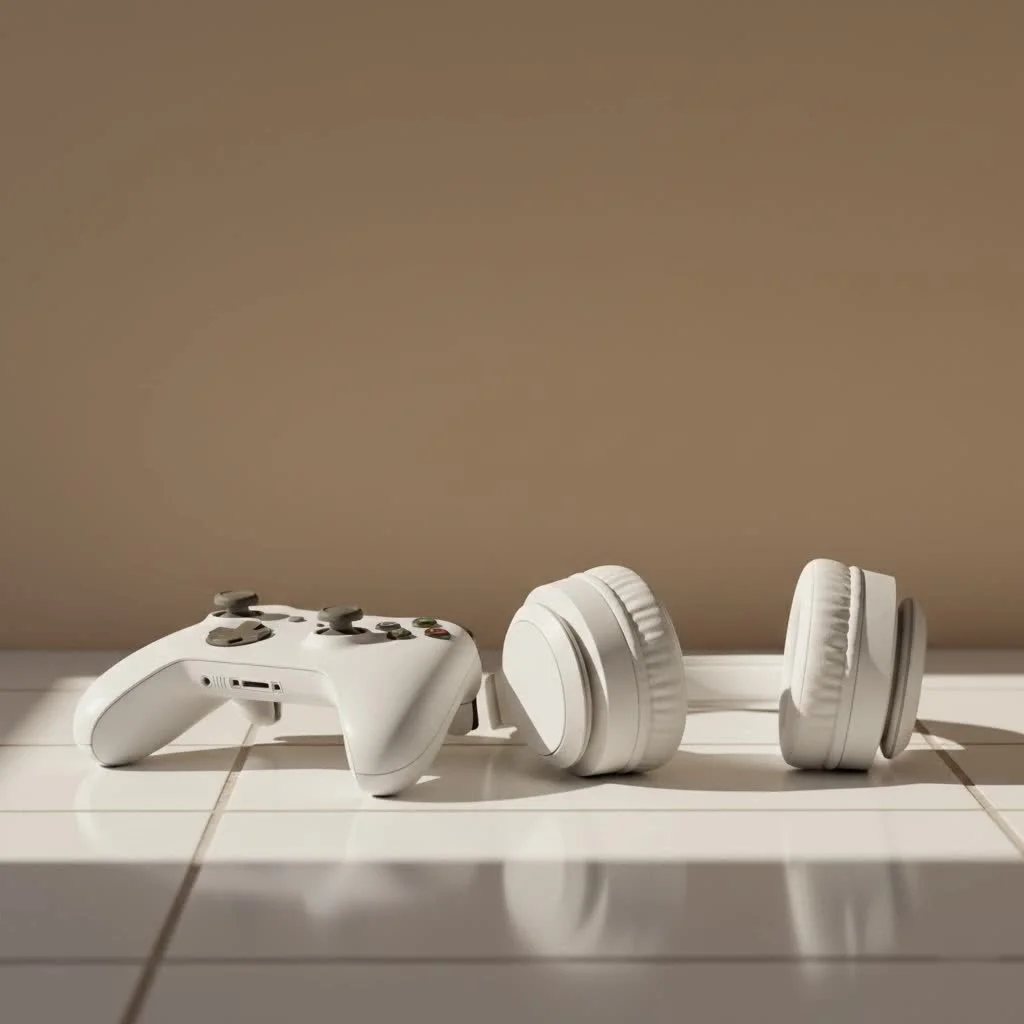
Why a Gaming Remote for PC? Unlocking New Dimensions of Play
Why would you, a savvy PC gamer, opt for a gaming remote over the classic keyboard and mouse? The answer lies in a blend of ergonomics, precision, and pure enjoyment.
First off, let’s talk comfort. After a long day, sometimes you just want to lean back in your chair or relax on the couch. A gaming remote for PC allows you to do just that. Its design is inherently more ergonomic for extended play sessions, reducing the strain on your hands and wrists that a keyboard and mouse can sometimes cause. It’s like sinking into your favorite armchair after a marathon session – pure bliss!
Then there’s the magic of analog precision. Try driving a race car with a keyboard; it’s often an all-or-nothing input. With the analog sticks and triggers on a gaming remote, you get a nuanced level of control. This makes a world of difference in games like racing simulators, flight sims, stealth adventures, or even third-person action titles where subtle movement is key. You can gently accelerate, smoothly steer, or sneak past enemies with a finesse a keyboard struggles to replicate.
Furthermore, modern gaming remotes bring enhanced immersion to your PC setup. Features like haptic feedback and rumble effects let you feel the game – the roar of an engine, the impact of a bullet, or the rumble of an explosion. This tactile feedback creates a more engaging and console-like experience, pulling you deeper into the game world in ways a traditional mouse and keyboard simply can’t.
“Many developers are now designing PC games with controllers in mind, ensuring a seamless and intuitive experience right out of the box,” says Dr. Elena Petrova, a veteran game hardware engineer. “It’s about giving players choices and enhancing accessibility for a broader audience.” So, whether you’re a console gamer transitioning to PC or just seeking a more relaxed way to play, a gaming remote for PC can bridge that gap and elevate your entire experience.
Wired vs. Wireless: Choosing Your Connection Style
One of the first big decisions you’ll face when picking a gaming remote for PC is whether to go wired or wireless. Both have their strong suits, and the “best” choice often comes down to your personal gaming style and setup.
Wired Gaming Remotes: The Low-Latency Champions
|
Our Picks for the Best Game Controller in 2026
As an Amazon Associate I earn from qualifying purchases.
|
||
| Num | Product | Action |
|---|---|---|
| 1 | Xbox Elite Series 2 Core Wireless Gaming Controller – White Series X-S, One, Windows PC, Android, and iOS |

|
| 2 | 8BitDo Ultimate 2 Wireless Controller for Windows PC, Apple, Steam & Android, Gaming Controller with TMR Joysticks, Hall/Tactile Triggers, Motion Control, RGB Fire Ring, 1000Hz Polling Rate, Black |
|
| 3 | 8BitDo Ultimate 2C Wireless Controller for Windows PC and Android, with 1000 Hz Polling Rate, Hall Effect Joysticks and Triggers, and Remappable L4/R4 Bumpers (Green) |
|
| 4 | EasySMX X15 PC Controller - Enhanced Wireless Bluetooth Controller with Hall Joysticks/Hall Triggers/RGB Lighting - No Stick Drift, No Dead Zone - Work for Windows PC, Android, Steam and Switch |
|
| 5 | VOYEE Switch Controllers Compatible with Switch/Lite/OLED/PC Windows, 1000mAh Programmable RGB Lightning LED, Wireless Pro Controller with One Key Pairing/Wake Up/Turbo/Vibration |
|
| 6 | PlayStation DualSense® Wireless Controller - Midnight Black |
|
| 7 | Spican Switch 2 Controller, Switch 2 Accessories Wireless Pro Controller with No-drift Hall Effect Joystick, 4 RGB Mode, 10H+ Battery, Turbo&Macro, Full-Size Hand-Curve Design Comfort for Nintendo Switch 2 Games |
|
| 8 | AceGamer Aurora II 2.4G Wireless Bluetooth Controller for PC/Android/Switch/iOS/Switch 2/Steam Deck with Rotary Motors, RGB Hall Effect Joysticks - Upgraded PC Gaming Controller and Back Buttons Lock |
|
| 9 | Logitech G F310 Wired Gamepad Controller Console Like Layout 4 Switch D-Pad PC - Blue/Black |
|
| 10 | ManbaOne Interactive Screen Wireless Gaming Controller for PC/Switch/Switch 2/iOS/Android,Hall Effect Stick & Trigger,RGB Lighting,Remappable Buttons,1800mAh with Charging Dock (Black) |
|
Wired controllers connect directly to your PC, usually via a USB cable.
Pros:
- Zero Input Lag: This is the big one for competitive gamers. A direct connection means virtually no delay between your button press and the action on screen. In fast-paced fighting games or twitch shooters (though most players prefer keyboard/mouse for FPS), every millisecond counts.
- Stable Connection: No interference, no dropped signals. A wired connection is rock-solid and reliable.
- No Battery Concerns: Plug it in, and you’re good to go. You’ll never have a gaming session cut short because your battery died.
- Plug-and-Play Simplicity: Often, it’s as simple as plugging in the cable, and Windows recognizes it instantly.
Cons:
- Limited Movement: You’re tethered to your PC by the length of the cable. This can be restrictive if you like to game from a distance.
- Cable Clutter: More wires mean a less tidy gaming space, which might be a drawback for minimalist setups.
Wired remotes are ideal for those who prioritize raw performance and don’t mind staying close to their machine.
Wireless Gaming Remotes: Freedom and Flexibility
Wireless controllers for PC offer freedom from cables, typically connecting via Bluetooth or a dedicated 2.4GHz USB dongle.
Pros:
- Untethered Play: Game from your couch, a comfy armchair, or even across the room. The freedom of movement is a game-changer for many.
- Clean Setup: Less cable clutter makes for a tidier, more organized gaming environment.
- Convenience: Easily pick up and put down your controller. Great for shared living spaces or when you want a relaxed, console-like experience.
Cons:
- Battery Management: Wireless controllers need power, meaning you’ll either deal with rechargeable batteries, AA batteries, or periodically plugging in to charge. Running out of juice mid-boss fight is a real pain!
- Potential (Minimal) Latency: While modern wireless technology is incredibly fast, there can still be a microscopic delay compared to a wired connection. For casual gaming, this is negligible, but competitive players might notice it.
- Initial Pairing: Setting up a wireless controller can sometimes involve a few more steps than just plugging in a cable, especially for Bluetooth connections.
For most gamers, modern wireless gaming remotes for PC strike an excellent balance between performance and convenience. The choice often boils down to how much you value freedom versus absolute minimal latency.
Connecting Your Gaming Remote to PC: A Step-by-Step Guide
Getting your gaming remote to work with your PC is usually straightforward, but the exact steps can vary slightly depending on whether it’s wired or wireless, and the brand of your controller.
Wired Connection: The Easiest Route
This is the simplest method:
- Grab your USB cable: Most modern controllers use USB-C, while older ones might use micro-USB.
- Plug it in: Connect one end to your gaming remote and the other to an available USB port on your PC.
- Windows handles the rest: Your PC should automatically detect the controller and install any necessary drivers. You’ll usually see a notification confirming it’s ready to use.
- Test it out: Open a game or the Windows Game Bar (Win + G) to confirm functionality.
Wireless Connection (Bluetooth): Untethered Play
For Bluetooth, ensure your PC has Bluetooth 4.0 or higher. If not, a USB Bluetooth adapter is an inexpensive fix.
- Enable Bluetooth on PC: Go to Windows Settings > Bluetooth & devices and toggle Bluetooth to “On.”
- Put your controller into pairing mode:
- Xbox Wireless Controller: Press the Xbox button to turn it on, then hold the small “Pair” button (usually on the top edge, near the USB port) for three seconds until the Xbox logo starts flashing rapidly.
- PlayStation DualSense/DualShock 4: Ensure the controller is off. Then, press and hold the PS button and the “Create” (DualSense) or “Share” (DualShock 4) button simultaneously until the light bar flashes rapidly.
- Other Controllers: Consult your controller’s manual for specific pairing instructions.
- Add the device on your PC: In Windows Bluetooth settings, click “Add device,” then select “Bluetooth.” Your controller should appear in the list (e.g., “Xbox Wireless Controller,” “Wireless Controller”). Select it to connect.
- Confirm and Test: The light on your controller should stop flashing and become solid. Test in a game to ensure everything is working correctly.
Brand-Specific Tips
- Xbox Controllers: These are the most PC-friendly, offering native Windows support for both wired and wireless connections. They often work seamlessly with Steam and other platforms without extra software.
- PlayStation Controllers (DualSense/DualShock 4): While they connect via Bluetooth, you might need third-party software like DS4Windows to unlock their full potential on PC, including features like rumble, touchpad functionality, and remapping.
- Nintendo Switch Pro Controller: Similar to PlayStation controllers, a Switch Pro Controller can connect via Bluetooth, but often benefits from software like DS4Windows (which also supports Switch Pro) or Steam’s Big Picture Mode for better compatibility and remapping.
If you encounter issues, always check for driver updates for your controller and ensure your PC’s operating system is up-to-date.
Top Gaming Remotes for PC in 2025: Our Expert Picks
The market for gaming remotes for PC is vibrant, with options ranging from affordable to high-end, packed with features. Here are some standouts that deliver an exceptional PC gaming experience:
- Xbox Wireless Controller: Often hailed as the best all-around PC controller, and for good reason. Its native Windows compatibility means it works seamlessly with almost every PC game. It offers comfortable ergonomics, reliable connectivity (wired, Bluetooth, or Xbox Wireless Adapter), and a sturdy build. It’s a fantastic entry point for anyone new to gaming remotes for PC.
- GameSir G7 Pro: This controller has been making waves, often cited as a top contender, sometimes even surpassing the Xbox controller in some reviews. It boasts Hall Effect thumbsticks (which prevent stick drift – a gamer’s nightmare!), responsive triggers, and often includes tri-mode connectivity (wired, Bluetooth, and 2.4GHz dongle for ultra-low latency). It offers premium features at a competitive price.
- Sony DualSense Wireless Controller: If you’re coming from PlayStation or simply love its unique design, the DualSense is a fantastic choice. Its revolutionary haptic feedback and adaptive triggers offer unparalleled immersion in supported games. While it might require a bit more setup on PC (e.g., DS4Windows for full functionality), its advanced features are a true game-changer.
- Razer Wolverine V3 Pro / Victrix Pro BFG: For serious enthusiasts and esports players, these premium, modular controllers offer extensive customization. We’re talking swappable components, remappable buttons, adjustable trigger stops, and professional-grade build quality. They are often wired or use high-performance 2.4GHz dongles for minimal latency, making them ideal for competitive play where every edge counts.
- 8BitDo Ultimate Bluetooth Controller: Known for its versatility and retro-inspired designs, 8BitDo offers excellent controllers that work across multiple platforms, including PC. The Ultimate model often features a charging dock and Hall Effect sticks, providing a great blend of classic feel and modern tech.
- GameSir Nova Lite: If you’re on a budget but still want quality, controllers like the GameSir Nova Lite offer incredible value. They often include sought-after features like Hall Effect thumbsticks at a very accessible price point, proving that you don’t have to break the bank for a great PC gaming remote.
When choosing, consider factors like ergonomic feel, connectivity options, battery life (for wireless), remappable buttons, and specialized features like Hall Effect joysticks or adaptive triggers.
Optimizing Your Gaming Remote Experience
Once your gaming remote is connected, a few tweaks can make your PC gaming experience even better.
- Customization Software: Many high-end controllers come with their own dedicated software (e.g., the Xbox Accessories app for Xbox controllers). These tools allow you to remap buttons, adjust trigger sensitivity, create multiple profiles for different games, and even tweak vibration intensity. For PlayStation controllers, DS4Windows offers similar extensive customization.
- Dead Zones and Sensitivity: Analog sticks can sometimes have a “dead zone” – a small area around the center where no input is registered. You can often adjust this in your controller’s software or within game settings to fine-tune responsiveness. Similarly, adjusting stick sensitivity can dramatically improve your aiming and movement precision.
- Game-Specific Settings: Always dive into the control settings of individual games. Many PC titles offer robust controller configuration options, allowing you to tailor the experience precisely to your liking. Don’t be afraid to experiment!
“Taking the time to personalize your controller settings can dramatically improve your gameplay and comfort,” advises Dr. Petrova. “It’s not just about what controller you use, but how you fine-tune it to your unique playstyle.”
Frequently Asked Questions
Can I use a PS5 controller on PC?
Yes, absolutely! The PS5 DualSense controller can connect to your PC via a USB-C cable or Bluetooth. For full functionality and customization (like haptic feedback and adaptive triggers in supported games, or advanced remapping), you might want to use third-party software like DS4Windows.
Is wired or wireless better for competitive gaming?
For competitive gaming where every millisecond counts, a wired gaming remote for PC is generally preferred. It offers virtually zero input lag and a perfectly stable connection, eliminating any potential wireless interference or minimal delays.
Do all PC games support controllers?
No, not all PC games inherently support controllers. While most modern games, especially those also released on consoles, offer excellent controller support, certain genres like classic real-time strategy (RTS) games, some older PC exclusives, or competitive first-person shooters (FPS) are primarily designed for keyboard and mouse. Always check a game’s specifications if controller support is crucial for you.
How do I fix input lag with my wireless controller?
To minimize input lag with a wireless gaming remote for PC:
- Ensure your PC’s Bluetooth is updated and ideally Bluetooth 4.0 or higher.
- Use a dedicated 2.4GHz wireless dongle if your controller came with one, as these often offer lower latency than standard Bluetooth.
- Keep your controller close to your PC or receiver.
- Ensure there isn’t excessive wireless interference from other devices in your immediate area.
- Keep your controller’s firmware updated.
What are Hall Effect joysticks?
Hall Effect joysticks use magnets and electrical conductors to detect movement, unlike traditional joysticks that rely on physical contact and potentiometers. This design significantly reduces wear and tear, making them highly resistant to common issues like “stick drift” (where the joystick registers input even when not being touched) and generally offering greater longevity and precision. They are a highly sought-after feature in modern gaming remotes for PC.
Conclusion: Elevate Your PC Gaming with the Right Remote
The world of PC gaming is more diverse and exciting than ever, and a high-quality gaming remote for PC is no longer just an accessory – it’s an essential tool for unlocking new levels of comfort, precision, and immersion. Whether you prefer the rock-solid reliability of a wired connection or the liberating freedom of wireless play, there’s a perfect controller out there waiting to transform your gaming sessions. By understanding the benefits, knowing how to connect your device, and optimizing its settings, you’re well on your way to a truly personalized and enhanced PC gaming experience. So go ahead, grab that gaming remote for PC, and get ready to rediscover your favorite virtual worlds!
Get our weekly buyer guide
Practical specs, not advice. Unsubscribe anytime.