The Xbox One controller is a highly ergonomic and versatile gaming peripheral, renowned for its comfortable design, innovative haptic feedback, and broad compatibility across Xbox consoles, PC, and mobile devices. Released in 2013, it significantly improved upon its predecessor, the Xbox 360 controller, with over 40 distinct enhancements, including refined ergonomics, impulse triggers, and a more precise D-pad.
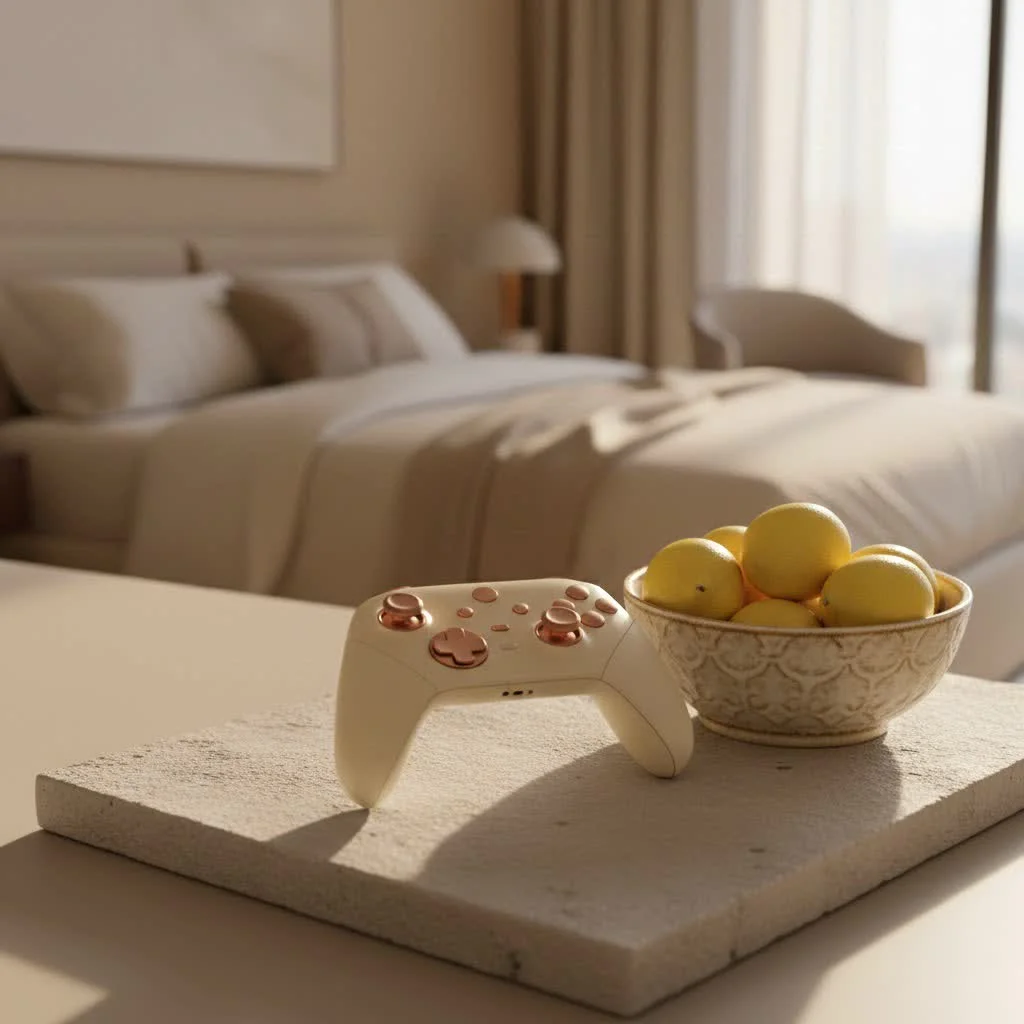
The Evolution of Excellence: From Xbox 360 to Xbox One
When the Xbox One controller first launched, it represented a significant advancement from the Xbox 360 controller. Microsoft implemented over 40 distinct improvements to enhance the gaming experience. For gaming controller buying guides on this site.
One of the most notable enhancements was in ergonomics. The general shape was subtly revised for a more natural feel, accommodating a wider range of hand sizes for prolonged gaming sessions. The triggers and shoulder buttons received a complete overhaul. The triggers, in particular, were revolutionary, integrating individual rumble motors that provided precise, directional haptic feedback, allowing players to feel every explosion, engine rev, or weapon recoil directly in their fingertips. This “impulse trigger” technology added an unprecedented layer of immersion.
The D-pad, a common point of contention on the Xbox 360, was redesigned as a crisp, responsive plus sign, positioned closer to the internal motherboard for improved accuracy and tactile feel. Thumbsticks were also refined, becoming slightly smaller with a softer rubber texture, and their dead zones were reduced, offering more precise control and durability for intense gaming moments. Even seemingly minor details, like the battery door, were integrated flush with the controller’s body, eliminating the protruding hump of the past. Beyond the physical, wireless connectivity saw substantial improvements, boasting 20 times more bandwidth and significantly reduced latency, translating to near-instantaneous input response.
Anatomy of a Champion: Key Features & Design
At its core, the Xbox One controller embodies a thoughtful design, balancing tradition with innovation. Its layout, while familiar to Xbox enthusiasts, introduced subtle refinements that elevated gameplay.
Let’s break down its key components:
- Classic Button Layout: You’ll find the iconic A, B, X, Y face buttons, each distinctly colored and responsive. Alongside them are the Menu and View buttons, replacing the traditional Start and Back, offering streamlined navigation within games and the console interface.
- The Xbox Button: Centrally located, this button illuminates with the Xbox logo and acts as your quick access to the console dashboard, friends list, and game captures.
- Precision Analog Sticks: Two offset analog sticks provide fluid, accurate movement and aiming, critical for competitive play. Their improved durability and texture enhance grip and control.
- Responsive D-Pad: The refined, cross-shaped D-pad delivers precise input for fighting games, menu navigation, and quick weapon selection.
- Impulse Triggers and Bumpers: The left and right triggers offer a wide range of motion for acceleration and braking, while their integrated rumble motors provide immersive feedback. The shoulder bumpers above them are robust and satisfyingly clicky.
- 3.5mm Headset Jack: A standard 3.5mm stereo headset jack allows you to plug in your favorite gaming headset directly, ensuring clear communication with teammates and immersive audio.
This meticulous design wasn’t accidental; it was the result of extensive user research and a deep understanding of what gamers truly need for an exceptional experience.
Connectivity & Compatibility: More Than Just a Console Controller
One of the Xbox One controller’s greatest strengths lies in its remarkable versatility. While it’s the primary input device for the Xbox One console, its utility extends far beyond.
Seamless Console Integration
|
Our Picks for the Best Game Controller in 2026
As an Amazon Associate I earn from qualifying purchases.
|
||
| Num | Product | Action |
|---|---|---|
| 1 | EasySMX X15 PC Controller - Enhanced Wireless Bluetooth Controller with Hall Joysticks/Hall Triggers/RGB Lighting - No Stick Drift, No Dead Zone - Work for Windows PC, Android, Steam and Switch |

|
| 2 | VOYEE Switch Controllers Compatible with Switch/Lite/OLED/PC Windows, 1000mAh Programmable RGB Lightning LED, Wireless Pro Controller with One Key Pairing/Wake Up/Turbo/Vibration |
|
| 3 | Spican Switch 2 Controller, Switch 2 Accessories Wireless Pro Controller with No-drift Hall Effect Joystick, 4 RGB Mode, 10H+ Battery, Turbo&Macro, Full-Size Hand-Curve Design Comfort for Nintendo Switch 2 Games |
|
| 4 | Logitech G F310 Wired Gamepad Controller Console Like Layout 4 Switch D-Pad PC - Blue/Black |
|
| 5 | PlayStation DualSense® Wireless Controller - Midnight Black |
|
| 6 | Xbox Elite Series 2 Core Wireless Gaming Controller – White Series X-S, One, Windows PC, Android, and iOS |
|
| 7 | 8BitDo Ultimate 2 Wireless Controller for Windows PC, Apple, Steam & Android, Gaming Controller with TMR Joysticks, Hall/Tactile Triggers, Motion Control, RGB Fire Ring, 1000Hz Polling Rate, Black |
|
| 8 | ManbaOne Interactive Screen Wireless Gaming Controller for PC/Switch/Switch 2/iOS/Android,Hall Effect Stick & Trigger,RGB Lighting,Remappable Buttons,1800mAh with Charging Dock (Black) |
|
| 9 | AceGamer Aurora II 2.4G Wireless Bluetooth Controller for PC/Android/Switch/iOS/Switch 2/Steam Deck with Rotary Motors, RGB Hall Effect Joysticks - Upgraded PC Gaming Controller and Back Buttons Lock |
|
| 10 | 8BitDo Ultimate 2C Wireless Controller for Windows PC and Android, with 1000 Hz Polling Rate, Hall Effect Joysticks and Triggers, and Remappable L4/R4 Bumpers (Green) |
|
Naturally, the Xbox One controller connects wirelessly to your Xbox One console using Microsoft’s proprietary Xbox Wireless technology. It’s designed for instant pairing and reliable, low-latency performance, ensuring your actions on the controller are faithfully replicated in-game. What’s even better is its forward compatibility; most Xbox One controllers work flawlessly with the newer Xbox Series X|S consoles, making it a valuable investment that spans generations.
Unleashing PC Gaming Potential
For PC gamers, the Xbox One controller is a godsend. You have a few options to connect:
- Wired Connection: Simply plug in a Micro-USB cable (or USB-C for newer revisions) from the controller to your PC, and Windows (7 or later) will typically install the necessary drivers automatically. It’s a rock-solid, zero-latency connection.
- Xbox Wireless Adapter for Windows: For a truly wireless experience on PC, Microsoft offers a dedicated USB dongle. This adapter uses the same Xbox Wireless protocol as the console, allowing up to eight controllers to connect simultaneously with minimal latency.
- Bluetooth Connectivity: Crucially, later revisions of the Xbox One controller (often those bundled with the Xbox One S or X, distinguishable by the plastic around the Xbox button being part of the controller face, not separate) include Bluetooth. This enables wireless connection to PCs, laptops, and even certain mobile devices without a proprietary adapter, offering great flexibility. However, Bluetooth can sometimes introduce slightly more latency compared to the dedicated Xbox Wireless protocol.
Mobile Gaming On-the-Go
With the rise of mobile gaming and cloud streaming services like Xbox Cloud Gaming, the Xbox One controller’s Bluetooth capability makes it an excellent companion for gaming on iOS and Android smartphones and tablets. Paired with a mobile clip, it transforms your phone into a portable gaming powerhouse, delivering console-level control accuracy wherever you are.
Powering Your Play: Batteries & Rechargeable Options
To keep you in the game, the Xbox One controller relies on a simple yet effective power system. Out of the box, most controllers are powered by two standard AA batteries. This offers the convenience of easily swapping out dead batteries for fresh ones, meaning you’re never truly out of power as long as you have spares.
However, for those who prefer a more eco-friendly and convenient solution, Microsoft also offers the Xbox Play & Charge Kit. This kit includes a rechargeable Lithium-Ion battery pack that fits directly into the controller’s battery compartment and a charging cable (originally Micro-USB, updated to USB-C for Series X|S controllers but compatible with Xbox One controllers that support it). This allows you to recharge your controller while playing or when the console is in standby, saving you money on disposable batteries in the long run. As veteran gamer and Vntut.com expert, Amelia “Ace” Chen, often says, “A dead battery can end a perfect streak quicker than any opponent. Always have a plan, whether that’s a fresh pair of AAs or a fully charged Play & Charge Kit.”
Beyond the Standard: Elite Controllers & Customization
While the standard Xbox One controller is a fantastic piece of hardware, Microsoft also caters to competitive and enthusiast gamers with its premium line: the Xbox Elite Wireless Controllers. The Elite Series 1 and Series 2 build upon the core design of the Xbox One controller, adding a host of customizable features that allow players to truly “tune” their gameplay.
Key features of Elite controllers include:
- Interchangeable Components: Swap out thumbsticks, D-pads, and paddles to suit your grip and game style.
- Hair Trigger Locks: Reduce trigger travel distance for faster firing in competitive shooters.
- Rear Paddles: Four customizable paddles on the back of the controller can be mapped to any button, allowing you to perform complex actions without taking your thumbs off the analog sticks.
- Customization via Xbox Accessories App: Fine-tune button mapping, stick sensitivity, trigger dead zones, and vibration settings, saving multiple profiles for different games.
Beyond Microsoft’s offerings, the market is rich with third-party Xbox One controllers from brands like PowerA and Razer. These often introduce their own unique enhancements, such as additional mappable buttons, enhanced grip textures, or unique aesthetic designs, providing even more choice for discerning gamers.
Maintaining Your Edge: Care Tips for Longevity
Even the most robust game controller needs a little TLC to ensure it performs optimally for years to come. As a seasoned expert, I’ve seen countless controllers succumb to neglect, so here are my top tips for keeping your Xbox One controller in peak condition:
- Regular Cleaning: Dust, sweat, and snack crumbs are the enemies of electronics. Use a soft, dry cloth to wipe down the controller regularly. For stubborn grime around buttons and seams, a cotton swab lightly dampened with isopropyl alcohol can work wonders. Be gentle and avoid excess moisture.
- Mindful Storage: When not in use, store your controller in a clean, dry place, away from direct sunlight or extreme temperatures. Avoid tossing it haphazardly into bags where it can get scratched or have buttons accidentally pressed. A dedicated charging stand often doubles as an excellent storage solution.
- Battery Management: If you’re using disposable AA batteries, remove them if you plan on storing the controller for an extended period to prevent potential leaks and corrosion. For rechargeable packs, avoid constantly draining them to 0% if possible, as this can reduce their overall lifespan.
- Preventing Stick Drift: Stick drift, where your character moves without input, is a common ailment across many controllers. While sometimes it’s due to wear, keeping your controller clean and free of debris around the analog sticks can help. Avoid excessive force when playing; treat your thumbsticks with respect!
The Enduring Legacy of the Xbox One Controller
In a rapidly evolving gaming landscape, the Xbox One controller stands as a shows thoughtful design and lasting quality. While newer controllers have emerged, the Xbox One controller’s core features—its unparalleled ergonomics, innovative haptic feedback, and broad compatibility—have cemented its place in gaming history. It’s more than just a console accessory; it’s a versatile tool that continues to deliver precision, comfort, and immersion across a multitude of platforms. It paved the way for future designs, influencing the next generation of Xbox controllers and setting a high bar for the industry.
Frequently Asked Questions
Does the Xbox One controller have Bluetooth connectivity for other devices?
The original Xbox One controllers released in 2013 did not feature Bluetooth. However, later revisions, starting with those released alongside the Xbox One S in 2016, include Bluetooth connectivity, allowing them to connect wirelessly to PCs, mobile devices, and tablets without a dedicated Xbox Wireless Adapter.
What are the different ways to use an Xbox One controller on a PC?
The Xbox One controller is an excellent choice for PC gaming and can be connected in several ways. You can use a Micro-USB or USB-C cable for a wired connection, an Xbox Wireless Adapter for Windows for a dedicated wireless connection, or Bluetooth if you have a newer, compatible controller model.
How does the Xbox One controller compare to the Xbox Series X|S controller?
While very similar in design, the Xbox Series X|S controller offers a few refinements over the Xbox One controller, such as a dedicated Share button, a hybrid dish-shaped D-pad, and textured grips. However, Xbox One controllers are largely compatible with Series X|S consoles, and vice-versa.
What is the best method to update the firmware on an Xbox One controller?
You can update your Xbox One controller's firmware directly from your Xbox One console by navigating to Settings > Devices & accessories. If using it on a PC, the Xbox Accessories App from the Microsoft Store allows you to check for and install firmware updates, ensuring optimal performance.
How long can I expect the batteries in an Xbox One controller to last?
Battery life varies based on usage and vibration settings. On average, two AA batteries can last anywhere from 20 to 40 hours of gameplay. A fully charged Xbox Play & Charge Kit battery typically offers similar, if not slightly better, performance.
Get our weekly buyer guide
Practical specs, not advice. Unsubscribe anytime.

I’ve been using my Xbox One controller for years, mostly for PC gaming, and it’s still my go-to. The compatibility across different devices is a huge plus, and I love how seamlessly it connects. The haptic feedback is fantastic, really adds to the immersion in games. Definitely a solid investment for any serious gamer.
I was skeptical about the ‘impulse triggers’ at first, but they really do make a difference, especially in racing games. You can feel the braking and acceleration so much more. It’s a small detail, but it totally elevates the experience. Plus, it’s super durable; mine has survived a few drops without a scratch.
I picked up an Xbox One controller specifically for the improved D-pad, and while it’s better than the 360’s, it’s still not perfect for fighting games. Sometimes I feel like inputs don’t register quite right. For other genres, it’s perfectly fine and comfortable, but I was hoping for a bit more precision there.
The ergonomics on the Xbox One controller are seriously underrated. I have pretty big hands, and it just feels natural even after hours of playing. It’s a big step up from the 360 controller, especially with those refined triggers. My only minor gripe is the battery life can be a bit inconsistent, but overall, it’s a great piece of kit.