A mobile gaming controller transforms your smartphone into a portable gaming powerhouse, offering superior precision, comfort, and immersion compared to on-screen touch controls. These controllers provide tactile feedback with dedicated buttons, analog sticks, and triggers, significantly enhancing gameplay for titles like Call of Duty: Mobile or Genshin Impact. Investing in the right controller allows gamers to experience mobile titles as they were intended, with many models offering cross-platform versatility for tablets, PCs, and cloud gaming services.
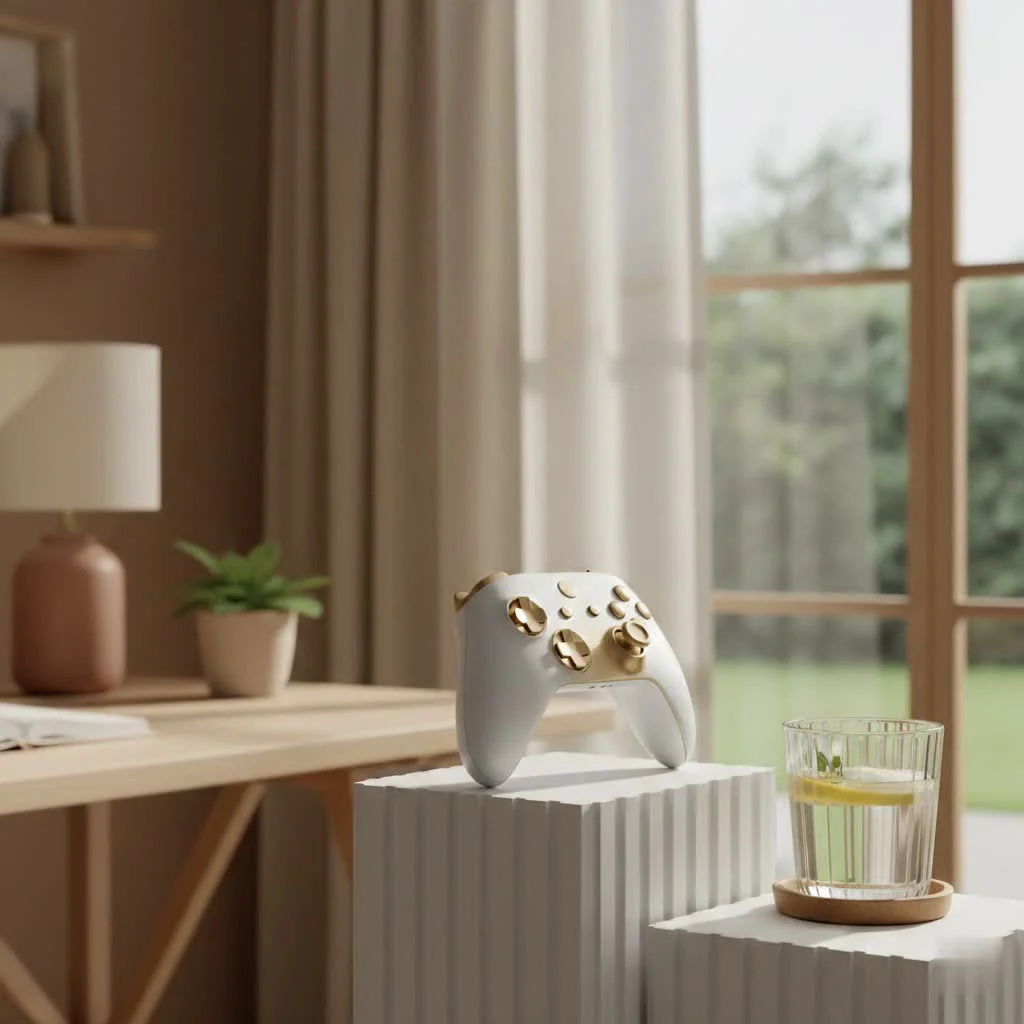
Whether you’re a casual player looking for more comfort or a hardcore gamer striving for precision, investing in the right mobile gaming controller can be a total major upgrade. It’s not just about playing; it’s about truly experiencing your mobile games as they were meant to be played. For expert gaming controller reviews on this site.
Why a Mobile Gaming Controller is Your Next Essential Upgrade
Many gamers wonder if a physical controller is truly necessary for mobile play. The answer, for anyone serious about their gaming, is a resounding yes. A mobile gaming controller offers a suite of advantages that touchscreens simply can’t match.
Precision and Performance Redefined
Imagine trying to hit a pixel-perfect headshot in Call of Duty: Mobile or execute a complex combo in a fighting game using only your thumbs on a flat screen. It’s tough, right? Mobile gaming controllers provide tactile feedback and dedicated buttons, analog sticks, and triggers that offer far superior accuracy and responsiveness. This precision is invaluable in competitive shooters, fighting games, and even intricate 2D platformers where every jump and dodge counts. High-quality controllers often feature Hall Effect sensors, which use magnets to detect movement, virtually eliminating dreaded “stick drift” and ensuring your inputs are always spot-on.
Unmatched Comfort for Extended Play
One of the most immediate benefits you’ll notice is the comfort. Prolonged touchscreen gaming often leads to hand cramps, finger fatigue, and an uncomfortable grip. A mobile gaming controller is ergonomically designed to fit naturally in your hands, much like a traditional console controller. This means you can enjoy longer gaming sessions without discomfort, keeping your focus on the action, not on aching thumbs.
Dive Deeper: An Immersive Console-Like Experience
With fingers blocking parts of your screen, touchscreen gaming can break immersion. A controller frees up your entire display, giving you an unobstructed view of the game world. The physical buttons and analog sticks replicate the feel of a console, drawing you deeper into the game. Titles like Genshin Impact, Fortnite, or even classic emulated games feel incredibly natural and immersive with a dedicated mobile gaming controller.
Beyond the Phone: Cross-Platform Versatility
|
Our Picks for the Best Game Controller in 2026
As an Amazon Associate I earn from qualifying purchases.
|
||
| Num | Product | Action |
|---|---|---|
| 1 | Logitech G F310 Wired Gamepad Controller Console Like Layout 4 Switch D-Pad PC - Blue/Black |

|
| 2 | Xbox Elite Series 2 Core Wireless Gaming Controller – White Series X-S, One, Windows PC, Android, and iOS |
|
| 3 | 8BitDo Ultimate 2 Wireless Controller for Windows PC, Apple, Steam & Android, Gaming Controller with TMR Joysticks, Hall/Tactile Triggers, Motion Control, RGB Fire Ring, 1000Hz Polling Rate, Black |
|
| 4 | ManbaOne Interactive Screen Wireless Gaming Controller for PC/Switch/Switch 2/iOS/Android,Hall Effect Stick & Trigger,RGB Lighting,Remappable Buttons,1800mAh with Charging Dock (Black) |
|
| 5 | EasySMX X15 PC Controller - Enhanced Wireless Bluetooth Controller with Hall Joysticks/Hall Triggers/RGB Lighting - No Stick Drift, No Dead Zone - Work for Windows PC, Android, Steam and Switch |
|
| 6 | PlayStation DualSense® Wireless Controller - Midnight Black |
|
| 7 | Spican Switch 2 Controller, Switch 2 Accessories Wireless Pro Controller with No-drift Hall Effect Joystick, 4 RGB Mode, 10H+ Battery, Turbo&Macro, Full-Size Hand-Curve Design Comfort for Nintendo Switch 2 Games |
|
| 8 | AceGamer Aurora II 2.4G Wireless Bluetooth Controller for PC/Android/Switch/iOS/Switch 2/Steam Deck with Rotary Motors, RGB Hall Effect Joysticks - Upgraded PC Gaming Controller and Back Buttons Lock |
|
| 9 | VOYEE Switch Controllers Compatible with Switch/Lite/OLED/PC Windows, 1000mAh Programmable RGB Lightning LED, Wireless Pro Controller with One Key Pairing/Wake Up/Turbo/Vibration |
|
| 10 | 8BitDo Ultimate 2C Wireless Controller for Windows PC and Android, with 1000 Hz Polling Rate, Hall Effect Joysticks and Triggers, and Remappable L4/R4 Bumpers (Green) |
|
Many modern mobile gaming controllers aren’t just for your smartphone. They can often be paired with other devices like tablets, PCs, and even cloud gaming services such as NVIDIA’s GeForce NOW. This versatility means your investment goes further, allowing you to enjoy a consistent control experience across multiple platforms.
Understanding Your Options: Types of Mobile Gaming Controllers
The market for mobile gaming controllers is diverse, offering various designs to suit different preferences and phone setups.
Direct Connection: The Clip-On and Telescopic Marvels
These controllers feature an expandable shell where your smartphone securely clips or slides in, often connecting directly via USB-C or Lightning port. They effectively improve your phone into a dedicated handheld console, reminiscent of a Nintendo Switch. Popular examples include the Backbone One and Razer Kishi.
- Pros: Minimal input lag due to direct connection, excellent portability (some fold down), integrated design.
- Cons: Phone compatibility might be specific to port type (USB-C or Lightning) and physical dimensions, may not fit phones with bulky cases.
Wireless Freedom: Bluetooth Gamepads
Bluetooth controllers are standalone gamepads that connect wirelessly to your phone. These are often standard console-style controllers (like an Xbox Wireless Controller or an 8BitDo Pro) or dedicated mobile designs (like the Turtle Beach Atom).
- Pros: Maximum freedom of movement, wider compatibility across various devices, often more ergonomic for larger hands.
- Cons: Potential for slight input latency (though often negligible for casual play), requires its own battery charging, needs a separate phone mount or stand.
The Niche Performer: 2.4GHz Wireless Controllers
Some controllers use a 2.4GHz wireless dongle for connection, offering lower latency than standard Bluetooth. However, these dongles require a USB port, which might not be readily available or convenient on all smartphones without an adapter. They are less common in the dedicated mobile gaming controller space but are sometimes found in controllers designed for multiple platforms.
How to Choose the Perfect Mobile Gaming Controller for You
Selecting the ideal mobile gaming controller involves considering several crucial factors to ensure it perfectly complements your device and gaming style.
Compatibility is Key: Device, OS, and Game Support
Before anything else, check if the controller is compatible with your smartphone’s operating system (iOS or Android) and its physical dimensions. Most modern phones use USB-C, but iPhones might use Lightning (for older models) or USB-C (for newer iPhone 15 series and beyond). Ensure the controller’s clamping mechanism or port aligns with your phone. Verify that your favorite games offer native controller support. While some apps allow for button remapping, native support provides the best experience.
Ergonomics and Build Quality: Feel the Difference
You’ll be holding this device for hours, so comfort is paramount. Look for an ergonomic design with contoured grips that fit naturally in your hands. Non-slip textures are a bonus for intense, sweaty sessions. Responsive buttons, triggers, and joysticks are critical. Durable materials, like high-quality polycarbonate or aluminum, are preferable to flimsy plastics that might crack under pressure. Many premium controllers now feature Hall Effect joysticks and triggers for enhanced durability and precision, mitigating common issues like stick drift.
Latency: Wired vs. Wireless Responsiveness
For competitive gamers, input lag can be the difference between victory and defeat. Wired or direct-connection (USB-C/Lightning) mobile gaming controllers offer the lowest latency, ensuring your actions register almost instantly. Bluetooth controllers have improved significantly, but a minuscule delay can still exist. For casual games, this won’t be an issue, but if every millisecond counts, prioritize a direct connection.
Powering Your Play: Battery Life and Charging
For wireless controllers, battery life is a major consideration. Look for models that offer at least 8-12 hours of playtime per charge, with many premium options boasting 20-30 hours or more. USB-C charging is a modern convenience, allowing faster charging and compatibility with your phone’s charger. A clear battery indicator, either on the controller itself or via a companion app, is incredibly helpful to avoid unexpected interruptions.
Beyond the Basics: Extra Features That Matter
- Pass-through Charging: Allows you to charge your phone while it’s connected to the controller, preventing your game session from being cut short.
- Headphone Jack: Crucial if your phone lacks a 3.5mm jack or if the controller blocks your phone’s port.
- Companion Apps: Many brands offer apps for firmware updates, button remapping, sensitivity adjustments, and even game launching.
- Programmable Back Paddles/Buttons: Offer additional inputs, giving you a competitive edge by keeping your thumbs on the sticks.
Setting Up Your Mobile Gaming Controller: A Quick Start Guide
Getting your new mobile gaming controller ready for action is usually a straightforward process.
Step 1: Charge Up!
If you have a wireless controller, ensure it’s fully charged before you begin. Most use a standard USB-C cable for charging.
Step 2: Enable Bluetooth (for Wireless)
On your smartphone, navigate to your settings and ensure Bluetooth is turned on.
Step 3: Pair Your Controller
Put your mobile gaming controller into pairing mode. This usually involves holding down a specific button combination (often a “Home” button along with “A,” “Y,” or a dedicated pairing button) until an LED light begins to flash. On your phone’s Bluetooth settings, scan for available devices and select your controller’s name from the list. The LED light on the controller should become solid once successfully paired.
Step 4: Secure Your Phone
If you have a clip-on or telescopic controller, carefully insert your smartphone into its designated slot. Ensure it’s securely held and the connection is firm.
Step 5: Game On!
Launch your favorite mobile game. Many titles offer native controller support, meaning your controller should work immediately. For games without native support, or if you want custom controls, you might use a third-party key-mapping application (like Octopus for Android) to assign virtual touchscreen inputs to your physical buttons.
Mobile Gaming Controller vs. Touchscreen: The Ultimate Showdown
The debate between physical controllers and touchscreens in mobile gaming is ongoing. Both have their merits, and the “best” often comes down to personal preference and game type.
Precision vs. Adaptability: When Each Shines
A mobile gaming controller undeniably excels in precision and complex multi-input scenarios. Analog sticks offer nuanced movement, and physical buttons provide a clear, responsive feedback that’s vital for competitive titles or action-packed adventures. However, for games explicitly designed for touch, especially those requiring swiping, tapping, or unique gestures, touch controls can be incredibly intuitive. Many highly skilled mobile gamers use multi-finger “claw” grips to achieve impressive levels of control on a touchscreen.
The Comfort Factor: Long-Haul Gaming
For extended gaming sessions, a physical controller takes the lead in comfort. Reducing hand strain and offering a natural grip means you can play longer without fatigue. Touchscreens, despite advancements, can still lead to discomfort over time, especially during intense play.
Fair Play: Competitive Gaming and Lobbies
In highly competitive mobile games like Warzone Mobile, the discussion often heats up regarding fairness. Some players argue that controllers offer an unfair advantage (often citing aim assist), while others believe skilled touch players can hold their own, particularly with optimized multi-finger setups. Game developers constantly monitor this balance, sometimes opting for separate lobbies for controller and touch players, while others might combine them with sophisticated matchmaking to ensure a fair experience for everyone. The superior method is often the one you have practiced and mastered.
Maintaining Your Mobile Gaming Controller for Lasting Performance
Just like any other piece of gaming gear, a mobile gaming controller benefits from a little care to ensure it lasts and performs optimally.
Cleaning Tips
Regularly wipe down your controller with a soft, dry cloth to remove dust and grime. For sticky residue, a lightly dampened cloth with a mild cleaner can be used, but avoid excessive moisture. Pay special attention to the gaps around buttons and joysticks.
Battery Health
For wireless controllers, try not to constantly keep them on charge once full. Allowing the battery to discharge partially before recharging can help prolong its lifespan. Store the controller in a cool, dry place when not in use.
Storage
When traveling or storing your controller for extended periods, consider using a protective case. This prevents buttons from being pressed accidentally, saves battery, and shields the controller from physical damage.
“The landscape of mobile gaming has transformed dramatically,” states Dr. Anya Sharma, a renowned Game Peripheral Architect at Vntut.com. “A well-designed mobile gaming controller isn’t just an accessory; it’s a fundamental shift, bridging the gap between casual taps and true console-grade immersion, offering unparalleled precision and comfort that touchscreens simply cannot replicate for complex titles.”
Frequently Asked Questions (FAQ)
What is a mobile gaming controller?
A mobile gaming controller is a physical input device designed to connect to your smartphone or tablet, providing traditional gamepad controls like joysticks, buttons, and triggers for an enhanced gaming experience.
Why should I use a mobile gaming controller instead of touch controls?
Mobile gaming controllers offer superior precision, improved ergonomics for comfort during long sessions, and a more immersive, console-like gaming experience by freeing up your screen from finger obstructions.
Are mobile gaming controllers compatible with both Android and iOS devices?
Many mobile gaming controllers are designed to be compatible with both Android and iOS, often connecting via Bluetooth or USB-C. However, some models might be exclusive to one platform or require specific port types (Lightning for older iPhones). Always check compatibility before purchasing.
Do all mobile games support controllers?
No, not all mobile games offer native controller support. While many popular action, FPS, and RPG titles do, some casual or puzzle games may not. You can often check the game’s description in the app store or use third-party key-mapping apps for unsupported games.
What are Hall Effect joysticks, and why are they important?
Hall Effect joysticks use magnets to detect movement, rather than physical contacts. This technology significantly reduces wear and tear, preventing common issues like “stick drift” and offering superior durability and accuracy over traditional potentiometers.
How do I connect a Bluetooth mobile gaming controller to my phone?
To connect a Bluetooth controller, ensure it’s charged and in pairing mode (usually indicated by a flashing LED). Then, go to your phone’s Bluetooth settings, scan for devices, and select your controller to pair.
Can I use my Xbox or PlayStation controller for mobile gaming?
Yes, modern Xbox Wireless Controllers and PlayStation controllers (DualShock 4 and DualSense) can typically be paired with most Android and iOS devices via Bluetooth, offering a familiar gaming experience.
Conclusion
The era of sophisticated mobile gaming is here, and a mobile gaming controller is your ticket to unlocking its full potential. From enhancing precision and comfort to delivering a truly immersive, console-quality experience, the benefits are clear. By carefully considering compatibility, ergonomics, latency, and additional features, you can select the perfect controller to match your style and elevate every moment you spend gaming on the go. So, take the leap, grab your ideal mobile gaming controller, and improve your smartphone into the ultimate portable gaming machine. The competitive edge, comfort, and sheer enjoyment await!
Setting Up Your Mobile Gaming Controller
This guide outlines the straightforward steps to get your new mobile gaming controller ready for action, whether it's a wireless Bluetooth model or a direct-connection clip-on.
If you have a wireless controller, ensure it is fully charged before beginning the setup process. Most modern controllers use a standard USB-C cable for convenient charging.
For wireless controllers, navigate to your smartphone's settings menu and ensure that the Bluetooth function is turned on. This allows your phone to discover and connect to the controller.
Put your mobile gaming controller into pairing mode, typically by holding a specific button combination until an LED light flashes. On your phone's Bluetooth settings, scan for available devices and select your controller's name. The LED light should become solid upon successful pairing.
If you are using a clip-on or telescopic controller, carefully insert your smartphone into its designated slot. Ensure it is securely held and that the physical connection (USB-C or Lightning) is firm and properly aligned.
Open your favorite mobile game. Many titles offer native controller support, allowing your controller to work immediately. For games without native support, consider using a third-party key-mapping application to assign virtual touchscreen inputs to your physical buttons for custom controls.
Get our weekly buyer guide
Practical specs, not advice. Unsubscribe anytime.

I got a mobile controller hoping to use it for cloud gaming services, but the latency was a bit more noticeable than I expected. It’s fine for slower-paced games, but for anything requiring quick reflexes, it’s not quite there. Still, for regular mobile games, the comfort and dedicated buttons are a big step up from just using the screen.
I love how versatile these controllers are! I initially bought mine for my tablet, but being able to use it with my PC for some indie games is a huge bonus. The cross-platform compatibility mentioned in the guide was a key factor in my decision, and it’s paid off. Definitely worth the investment for any serious mobile gamer.
I’ve been using a mobile gaming controller for Call of Duty: Mobile for a few weeks now, and it’s a total game-changer. The precision with the analog sticks is so much better than touch controls, and my K/D ratio has definitely improved. It really makes the game feel like a console experience on my phone.
This guide was super helpful! I was on the fence about getting a controller for Genshin Impact, but the points about tactile feedback and immersion convinced me. I picked up one of the mid-range models, and it’s made exploring Teyvat so much more enjoyable. My only minor gripe is that it took a little while to get used to the button layout.