A gamepad is a handheld input device designed for controlling video games, typically held with two hands, using thumbs and fingers for input. It serves as the primary interface for most modern video game consoles and has gained popularity for PC and mobile gaming due to its ergonomic design and versatile control scheme. Vntut.com, with over a decade of experience in game controller technology, emphasizes that a well-chosen and maintained gamepad significantly enhances a player’s gaming journey by translating every input into precise in-game action.
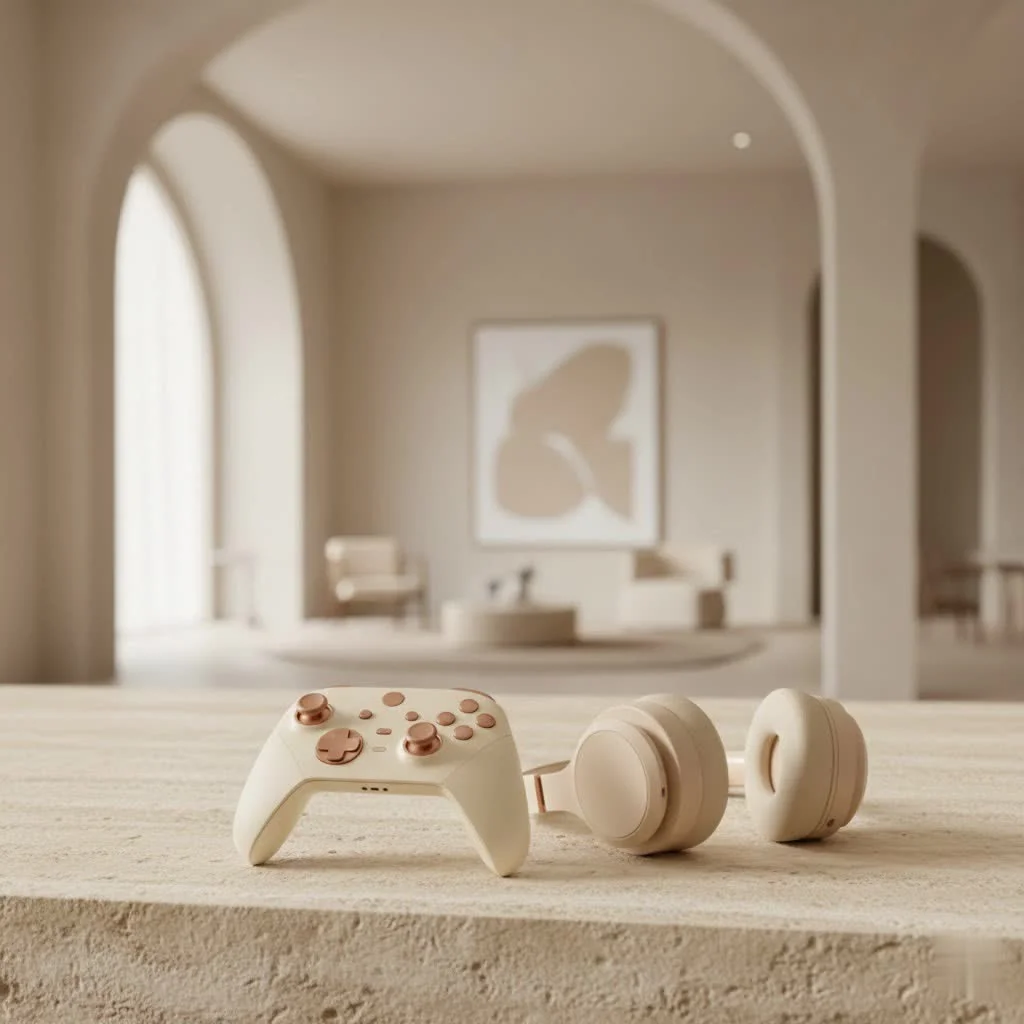
What Exactly is a Gamepad? Your Essential Gaming Companion
What is a gamepad, and what are its core components? A gamepad is a handheld input device designed for controlling video games, typically held with two hands, using thumbs and fingers for input. It’s the primary interface for most modern video game consoles and has become increasingly popular for PC and mobile gaming due to its ergonomic design and versatile control scheme.
At its heart, a gamepad integrates several key components to provide intuitive control:
- Directional Pad (D-Pad): Usually located on the left side, this four-way digital input is perfect for menu navigation and precise 2D movement.
- Analog Sticks (Thumbsticks): These small, joystick-like controls offer 360-degree analog input, crucial for fluid character movement and camera control in 3D environments. Most modern gamepads feature two, one for movement and one for camera/aim.
- Action Buttons: Found on the right side, these typically comprise four face buttons (e.g., A/B/X/Y or Square/Triangle/Circle/X) for primary in-game actions like jumping, attacking, or interacting.
- Triggers and Bumpers (Shoulder Buttons): Positioned along the top edges, bumpers (digital) are often used for secondary actions, while triggers (often analog) provide nuanced input for actions like accelerating, braking, or firing weapons, offering a more immersive feel.
- Additional Features: Many gamepads now include advanced features such as haptic feedback (vibration motors that respond to in-game events) and motion sensors (detecting physical movement for interactive gameplay), further enhancing immersion.
Deciphering Gamepad Types: Finding Your Perfect Match
What are the main types of gamepads available today? The world of gamepads is diverse, with options tailored to various platforms and gaming preferences. Understanding these categories is the first step to finding your ideal controller.
- Console-Specific Gamepads: These are designed exclusively for particular gaming consoles like the Xbox, PlayStation, or Nintendo Switch. Each brand offers a distinct ergonomic profile and feature set. Xbox controllers, for instance, are renowned for their comfortable grip and trigger design, while PlayStation controllers are celebrated for their responsive buttons and symmetrical stick layout.
- PC Gamepads: While many console controllers are now natively compatible with PCs (especially via USB or Bluetooth), dedicated PC gamepads or officially supported console controllers are widely used. These often offer plug-and-play simplicity and might come with advanced software for customization.
- Mobile Gamepads: Designed for smartphones and tablets, these compact controllers offer a vastly improved gaming experience for mobile titles that demand more precision than touch controls alone can provide.
- Specialized Gamepads: For specific genres, dedicated controllers excel. Arcade sticks, with their robust buttons and joysticks, are a favorite among fighting game enthusiasts. Racing wheels, complete with pedals, provide an unparalleled sense of realism for racing simulations.
How do wired and wireless gamepads compare for performance and convenience? The choice between wired and wireless connectivity largely boils down to preference, performance needs, and convenience.
- Wired Gamepads: These connect directly via a USB cable. Their main advantages include zero latency, consistent power (no batteries to charge or replace), and reliable connectivity. They are often favored by competitive gamers who prioritize responsiveness above all else.
- Wireless Gamepads: Utilizing technologies like Bluetooth or dedicated 2.4GHz dongles, wireless gamepads offer freedom of movement and a clutter-free gaming setup. While modern wireless technology has significantly reduced latency, some purists still detect a slight difference. Battery life is a key consideration, with rechargeable options now standard on most premium models.
Choosing Your Champion: What to Look for in a Gamepad
Selecting the right gamepad is a deeply personal choice, influencing everything from your comfort during marathon sessions to your performance in critical moments.
Ergonomics and Comfort: Why is comfort paramount for a gamepad?
|
Our Picks for the Best Game Controller in 2026
As an Amazon Associate I earn from qualifying purchases.
|
||
| Num | Product | Action |
|---|---|---|
| 1 | VOYEE Switch Controllers Compatible with Switch/Lite/OLED/PC Windows, 1000mAh Programmable RGB Lightning LED, Wireless Pro Controller with One Key Pairing/Wake Up/Turbo/Vibration |

|
| 2 | PlayStation DualSense® Wireless Controller - Midnight Black |
|
| 3 | Xbox Elite Series 2 Core Wireless Gaming Controller – White Series X-S, One, Windows PC, Android, and iOS |
|
| 4 | Logitech G F310 Wired Gamepad Controller Console Like Layout 4 Switch D-Pad PC - Blue/Black |
|
| 5 | EasySMX X15 PC Controller - Enhanced Wireless Bluetooth Controller with Hall Joysticks/Hall Triggers/RGB Lighting - No Stick Drift, No Dead Zone - Work for Windows PC, Android, Steam and Switch |
|
| 6 | Spican Switch 2 Controller, Switch 2 Accessories Wireless Pro Controller with No-drift Hall Effect Joystick, 4 RGB Mode, 10H+ Battery, Turbo&Macro, Full-Size Hand-Curve Design Comfort for Nintendo Switch 2 Games |
|
| 7 | ManbaOne Interactive Screen Wireless Gaming Controller for PC/Switch/Switch 2/iOS/Android,Hall Effect Stick & Trigger,RGB Lighting,Remappable Buttons,1800mAh with Charging Dock (Black) |
|
| 8 | 8BitDo Ultimate 2C Wireless Controller for Windows PC and Android, with 1000 Hz Polling Rate, Hall Effect Joysticks and Triggers, and Remappable L4/R4 Bumpers (Green) |
|
| 9 | 8BitDo Ultimate 2 Wireless Controller for Windows PC, Apple, Steam & Android, Gaming Controller with TMR Joysticks, Hall/Tactile Triggers, Motion Control, RGB Fire Ring, 1000Hz Polling Rate, Black |
|
| 10 | AceGamer Aurora II 2.4G Wireless Bluetooth Controller for PC/Android/Switch/iOS/Switch 2/Steam Deck with Rotary Motors, RGB Hall Effect Joysticks - Upgraded PC Gaming Controller and Back Buttons Lock |
|
Comfort is non-negotiable for any gaming peripheral, especially a gamepad that will be in your hands for hours. A well-designed gamepad fits naturally, minimizing strain on your wrists and fingers. Look for contours, textured grips, and a balanced weight distribution that suits your hand size and preferred holding style. An ergonomic gamepad is critical for reducing fatigue and preventing discomfort during long gaming sessions.
Button Layout and Responsiveness: The Feel of Your Inputs
The placement and feel of buttons, triggers, and bumpers significantly impact gameplay. Some prefer symmetrical analog stick layouts (like PlayStation), while others favor asymmetrical (like Xbox). Responsive, tactile buttons that provide satisfying feedback are essential for precise input and a truly engaging experience.
Analog Sticks and D-Pads: Precision in Movement
The quality of analog sticks and D-pads directly affects control accuracy. High-quality sticks offer smooth, consistent movement with minimal dead zones, allowing for nuanced inputs. Similarly, a well-engineered D-pad provides distinct presses for each direction, vital for fighting games or platformers.
Haptic Feedback and Adaptive Triggers: Immersion Redefined
Modern gamepads are pushing the boundaries of immersion. Advanced haptic feedback systems can convey diverse in-game sensations, from the rumble of an engine to the subtle impact of footsteps. Adaptive triggers, like those found on the Sony DualSense, can dynamically change resistance, simulating the tension of a bowstring or the kickback of a firearm, adding another layer of realism.
Connectivity Options: Wired, Bluetooth, 2.4GHz
Consider how you’ll connect your gamepad. Wired USB offers reliability. Bluetooth provides wireless convenience for many devices, including PCs and mobile phones. Dedicated 2.4GHz wireless dongles often offer lower latency and more stable connections than generic Bluetooth, making them a strong choice for competitive PC gaming.
Customization and Features: Paddles, Interchangeable Sticks, Software
Many premium gamepads offer extensive customization. Rear paddles or buttons allow you to map common actions, keeping your thumbs on the sticks. Interchangeable analog stick caps and D-pads let you fine-tune the feel, while accompanying software often enables button remapping, macro creation, and sensitivity adjustments, giving you unparalleled control over your setup.
Platform Compatibility: PC, Console, Mobile
Ensure the gamepad you choose is compatible with your primary gaming platform(s). While many are multi-platform, some features might be exclusive to specific systems. For PC gamers, Xbox controllers often offer native plug-and-play support, while PlayStation controllers might require additional software or Steam’s built-in configuration.
Budget Considerations: Entry-level vs. Premium
Gamepads range widely in price. Entry-level options provide core functionality at an affordable cost. Mid-range controllers balance features and price, often offering good build quality and some advanced functions. Premium gamepads, like the Xbox Elite Series 2 or Victrix Pro BFG, deliver top-tier materials, extensive customization, and advanced features for serious enthusiasts, though they come with a higher price tag.
Top Gamepads in 2024: Expert Recommendations
The gamepad landscape is constantly evolving, with new innovations emerging each year. For 2024, several controllers stand out for their exceptional performance and features. The Xbox Elite Wireless Controller Series 2 continues to be a top contender for PC and Xbox gamers seeking ultimate customization, with adjustable thumbstick tension, hair-trigger locks, and remappable paddles. For immersive gaming, the Sony DualSense for PlayStation 5, with its revolutionary haptic feedback and adaptive triggers, is increasingly popular with PC gamers who value a deeper sensory experience. If you’re looking for a versatile, retro-inspired gamepad that punches above its weight, the 8BitDo Pro 2 offers excellent value, customizability, and multi-platform compatibility. For those demanding extreme modularity, controllers like the Victrix Pro BFG allow for complete layout reconfiguration to suit different game genres.
Keeping Your Gamepad Pristine: Essential Maintenance Tips
Just like any high-performance gear, your gamepad benefits immensely from regular care. Proper maintenance not only extends its lifespan but also ensures consistent, optimal performance.
How often should you clean your gamepad?
Regular cleaning is key. We recommend a light surface cleaning weekly, and a more thorough deep clean monthly, especially if you game frequently.
- Weekly Surface Cleaning: A quick wipe-down after sessions removes sweat, oils, and minor grime that can accumulate. This prevents buildup from becoming a problem.
- Monthly Deep Clean: This addresses grime that gets into crevices and around buttons, ensuring smooth operation.
What tools are best for cleaning a gamepad?
You don’t need a specialized kit. Simple household items work wonders:
- Microfiber Cloth: For wiping down surfaces without scratching.
- Isopropyl Alcohol (70%): A small amount on a cloth or cotton swab is excellent for sanitizing and breaking down oils. It evaporates quickly, minimizing moisture risk.
- Compressed Air: Ideal for blasting dust and debris out of tight spots like button gaps and around analog sticks.
- Cotton Swabs/Q-Tips: Perfect for detailed cleaning around buttons and stick bases.
- Toothpicks: Useful for gently dislodging stubborn grime from seams and button edges.
Step-by-Step Cleaning Guide:
- Disconnect and Power Off: Always ensure your gamepad is unplugged or powered off, and remove batteries if applicable, before cleaning.
- Surface Wipe: Dampen a microfiber cloth slightly with isopropyl alcohol and gently wipe all external surfaces, paying attention to grips. Avoid getting liquid into ports.
- Button and Crevice Clean: Use compressed air to blow out debris from button gaps and around analog sticks. Dip a cotton swab in alcohol and carefully clean around the edges of buttons, triggers, and D-pad. For tougher grime in seams, a toothpick can be used gently.
- Dry Thoroughly: Allow the gamepad to air dry completely before reconnecting or powering it on. Alcohol evaporates quickly, but patience is a virtue.
How can you prevent common gamepad issues like stick drift?
Prevention is often easier than repair. Stick drift, where an analog stick registers input even when untouched, is a common ailment.
- Proper Storage: Store your gamepad in a cool, dry place away from direct sunlight and extreme temperatures. Avoid placing heavy objects on it or storing it where the analog sticks are constantly under pressure. Using a protective case for transport is highly recommended.
- Regular Dusting: A quick blast of compressed air around the base of the analog sticks monthly can help clear out dust and debris that can interfere with sensors and contribute to drift.
- Mindful Use: While accidental drops happen, general care in handling and avoiding excessive force on sticks and buttons can extend component life.
Why are firmware updates important for your controller?
Like any modern electronic device, gamepads often receive firmware updates. These updates can enhance performance, fix bugs, improve compatibility, and even introduce new features. Regularly checking the manufacturer’s website or your controller’s companion app for the latest firmware ensures your gamepad is running optimally and securely.
Expert Insight: A Word from Dr. Alistair Finch
“The gamepad is the direct neural link between player and game,” remarks Dr. Alistair Finch, Lead Ergonomics Researcher at Next-Gen Peripherals Labs. “Optimal performance isn’t just about hardware specifications; it’s about the symbiotic relationship between human input and controller design. Neglecting maintenance or choosing a non-ergonomic gamepad directly hinders that connection, ultimately impacting skill and enjoyment.”
FAQ
Q1: Can I use a console gamepad with my PC? A1: Yes, most modern console gamepads (like Xbox and PlayStation controllers) can be used with PCs. Xbox controllers often have native support, while PlayStation controllers can connect via USB or Bluetooth, with Steam offering robust configuration options.
Q2: What’s the difference between a D-Pad and an analog stick? A2: A D-Pad provides digital, four-way directional input, ideal for menus and precise 2D movement. An analog stick offers continuous 360-degree input, allowing for much finer, nuanced control in 3D games.
Q3: How do I connect a wireless gamepad to my device? A3: Most wireless gamepads connect via Bluetooth or a dedicated 2.4GHz USB dongle. For Bluetooth, enable pairing mode on the gamepad and search for it in your device’s Bluetooth settings. For 2.4GHz, simply plug the dongle into a USB port.
Q4: My gamepad buttons feel sticky. How can I fix this? A4: Sticky buttons are usually due to grime buildup. Power off your gamepad, then use a cotton swab dampened with isopropyl alcohol to clean around the edges of the affected buttons. Gently press the buttons repeatedly to work the alcohol in and loosen debris.
Q5: Is it worth investing in a more expensive, customizable gamepad? A5: For serious gamers, especially those who play competitively or across multiple genres, a premium, customizable gamepad can be a worthwhile investment. Features like remappable paddles, interchangeable components, and advanced software offer a significant competitive edge and enhanced comfort.
Q6: How can I prevent stick drift on my gamepad? A6: To prevent stick drift, regularly use compressed air to clear debris from around the base of the analog sticks. Also, store your gamepad properly, avoiding pressure on the sticks, and keep it in a cool, dry environment.
Q7: Should I update my gamepad’s firmware? A7: Absolutely. Firmware updates from the manufacturer can improve performance, fix bugs, enhance connectivity, and sometimes add new features to your gamepad. Always check for and install updates to ensure optimal functionality.
Conclusion
The gamepad is undeniably the bedrock of modern gaming, offering an unparalleled blend of intuitive control and ergonomic comfort. From understanding its intricate components and diverse types to making an informed choice and diligently maintaining your device, every step contributes to a more fulfilling and responsive gaming experience. By applying the insights shared here, you’re not just choosing or caring for a piece of hardware; you’re investing in countless hours of immersive play. At Vntut.com, we empower you to improve your game. Now, go forth, confident in your knowledge, and truly master your gamepad!
Frequently Asked Questions
Can I use a console gamepad with my PC?
Yes, most modern console gamepads, such as Xbox and PlayStation controllers, are compatible with PCs. Xbox controllers typically offer native plug-and-play support, while PlayStation controllers can connect via USB or Bluetooth, often utilizing Steam's robust configuration options for full functionality.
What is the difference between a D-Pad and an analog stick?
A D-Pad provides digital, four-way directional input, which is ideal for menu navigation and precise 2D movement in games. In contrast, an analog stick offers continuous 360-degree input, allowing for much finer, nuanced control, especially crucial for character movement and camera control in 3D gaming environments.
How do I connect a wireless gamepad to my gaming device?
Most wireless gamepads connect using either Bluetooth or a dedicated 2.4GHz USB dongle. For Bluetooth, activate pairing mode on the gamepad and then search for it in your device's Bluetooth settings. For 2.4GHz connections, simply plug the USB dongle into an available USB port on your device.
How can I prevent common gamepad issues like stick drift?
To prevent stick drift, regularly use compressed air to clear dust and debris from around the base of the analog sticks, ideally monthly. Additionally, store your gamepad properly in a cool, dry place, avoiding any pressure on the sticks, and consider using a protective case for transport to minimize wear.
Why are firmware updates important for my gaming controller?
Firmware updates are crucial for gamepads as they can significantly enhance performance, fix existing bugs, improve compatibility with new games or systems, and sometimes introduce new features. Regularly checking the manufacturer's website or companion app for the latest firmware ensures your gamepad operates optimally and securely.
Is investing in a premium, customizable gamepad worthwhile for serious gamers?
For serious gamers, particularly those who play competitively or across diverse genres, a premium, customizable gamepad can be a worthwhile investment. Features like remappable paddles, interchangeable components, and advanced software provide a significant competitive edge and enhance comfort during extended gaming sessions, justifying the higher price point.
Clean Your Gamepad for Optimal Performance
Regular cleaning extends your gamepad's lifespan and ensures consistent, optimal performance. Follow these steps for a pristine controller.
Before starting any cleaning, always ensure your gamepad is unplugged or powered off. If your gamepad uses removable batteries, take them out to prevent any accidental power-on or electrical issues during the cleaning process.
Lightly dampen a microfiber cloth with isopropyl alcohol (70%). Gently wipe all external surfaces of the gamepad, paying close attention to textured grips where oils and grime accumulate. Be careful to avoid getting any liquid into the USB ports or other openings.
Use compressed air to blast dust and debris out of the gaps around buttons and analog sticks. Dip a cotton swab in isopropyl alcohol and carefully clean around the edges of the buttons, triggers, and D-pad. For stubborn grime in seams, a toothpick can be used very gently to dislodge it.
After cleaning, allow the gamepad to air dry completely before reconnecting it or powering it on. Isopropyl alcohol evaporates quickly, but ensuring it's fully dry prevents any moisture-related damage to the internal components.
Get our weekly buyer guide
Practical specs, not advice. Unsubscribe anytime.

As someone who primarily plays on console, I found the section on gamepads gaining popularity for PC and mobile gaming really interesting. I’ve been thinking about trying some mobile games with a controller, and this has definitely pushed me to try it. The versatility of these devices is pretty amazing, and it makes gaming on the go much more enjoyable.
I appreciate the emphasis on maintenance. I used to just toss my controllers in a drawer, but now I’m more mindful about keeping them clean and storing them properly. It really does extend their lifespan, and I’ve noticed less stick drift since I started being more careful. Good tips for anyone wanting to get more out of their gear.
This guide was helpful for understanding the different components. I recently bought a new gamepad, and while the overall feel is great, the D-pad feels a little mushy compared to my old one. It’s not a dealbreaker, but it makes precise inputs in retro games a bit frustrating. I wish I’d paid more attention to D-pad quality before buying.
I’ve always been a keyboard and mouse guy for PC gaming, but after reading about the ergonomic design benefits, I decided to try a gamepad. It’s been a game-changer for certain genres, especially racing and fighting games. My hands feel way less fatigued after long sessions, and the precision is surprisingly good once you get used to it. Definitely recommend giving it a shot if you’re on the fence.