In the dynamic world of PC gaming, precision and comfort can redefine your experience. While a keyboard and mouse offer unparalleled accuracy for many genres, some games truly shine with the tactile feedback and intuitive control of a gamepad. And when it comes to gamepads, the Xbox controller has long been the gold standard for PC players, renowned for its ergonomic design and seamless Windows integration. Whether you’re a seasoned gamer looking to optimize your setup or a newcomer eager to dive into controller-friendly titles, connecting your Xbox gamepad to your PC is a game-changer.
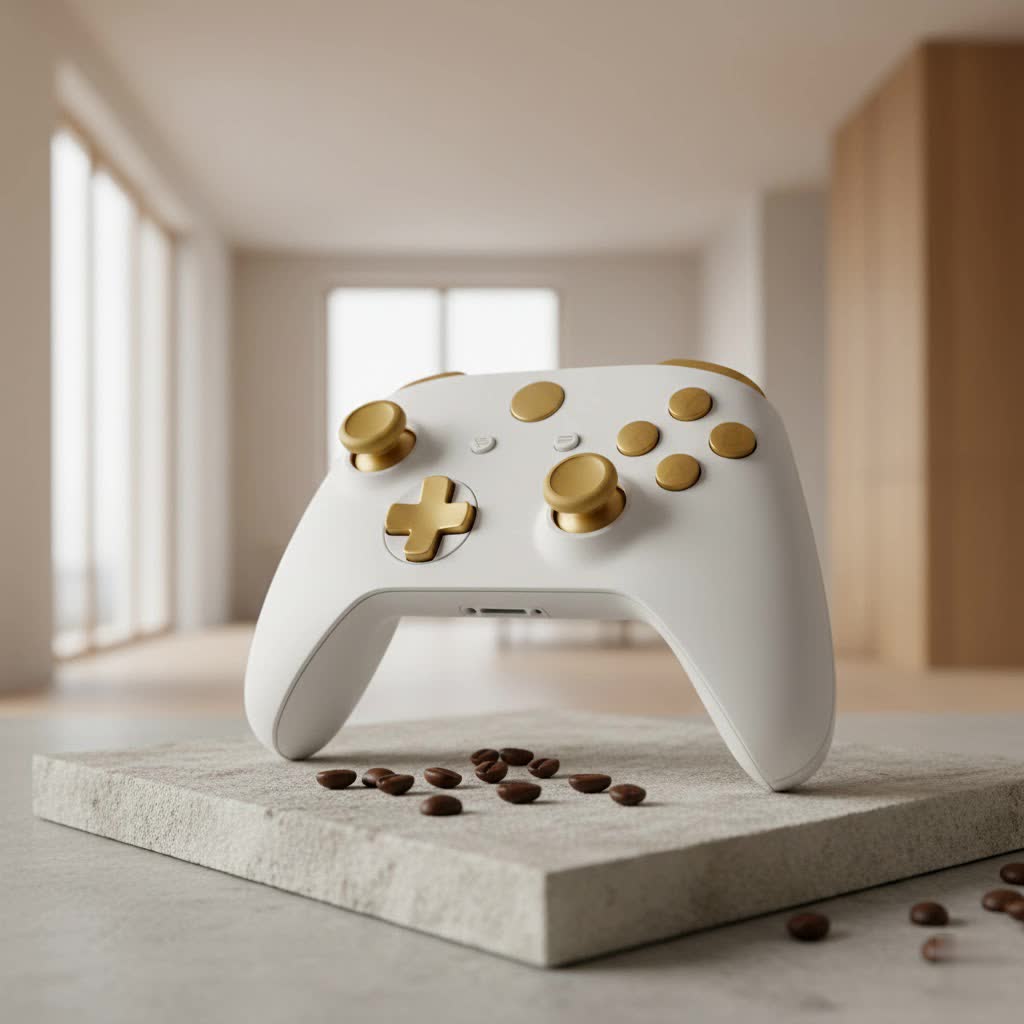
This comprehensive guide from Vntut.com will walk you through every step, from initial setup to advanced customization and troubleshooting, ensuring you get the most out of your Xbox gamepad on PC.
Connecting Your Xbox Gamepad to PC: Three Easy Ways
Connecting your Xbox gamepad to your PC doesn’t have to be a puzzle. Microsoft has designed its controllers for robust compatibility with Windows, offering multiple ways to get you into the game quickly.
Wired Connection: Plug and Play Simplicity
|
Our Picks for the Best Game Controller in 2026
As an Amazon Associate I earn from qualifying purchases.
|
||
| Num | Product | Action |
|---|---|---|
| 1 | AceGamer Aurora II 2.4G Wireless Bluetooth Controller for PC/Android/Switch/iOS/Switch 2/Steam Deck with Rotary Motors, RGB Hall Effect Joysticks - Upgraded PC Gaming Controller and Back Buttons Lock |

|
| 2 | PlayStation DualSense® Wireless Controller - Midnight Black |
|
| 3 | ManbaOne Interactive Screen Wireless Gaming Controller for PC/Switch/Switch 2/iOS/Android,Hall Effect Stick & Trigger,RGB Lighting,Remappable Buttons,1800mAh with Charging Dock (Black) |
|
| 4 | Spican Switch 2 Controller, Switch 2 Accessories Wireless Pro Controller with No-drift Hall Effect Joystick, 4 RGB Mode, 10H+ Battery, Turbo&Macro, Full-Size Hand-Curve Design Comfort for Nintendo Switch 2 Games |
|
| 5 | 8BitDo Ultimate 2C Wireless Controller for Windows PC and Android, with 1000 Hz Polling Rate, Hall Effect Joysticks and Triggers, and Remappable L4/R4 Bumpers (Green) |
|
| 6 | EasySMX X15 PC Controller - Enhanced Wireless Bluetooth Controller with Hall Joysticks/Hall Triggers/RGB Lighting - No Stick Drift, No Dead Zone - Work for Windows PC, Android, Steam and Switch |
|
| 7 | 8BitDo Ultimate 2 Wireless Controller for Windows PC, Apple, Steam & Android, Gaming Controller with TMR Joysticks, Hall/Tactile Triggers, Motion Control, RGB Fire Ring, 1000Hz Polling Rate, Black |
|
| 8 | Xbox Elite Series 2 Core Wireless Gaming Controller – White Series X-S, One, Windows PC, Android, and iOS |
|
| 9 | VOYEE Switch Controllers Compatible with Switch/Lite/OLED/PC Windows, 1000mAh Programmable RGB Lightning LED, Wireless Pro Controller with One Key Pairing/Wake Up/Turbo/Vibration |
|
| 10 | Logitech G F310 Wired Gamepad Controller Console Like Layout 4 Switch D-Pad PC - Blue/Black |
|
For a rock-solid connection that requires minimal fuss, nothing beats a wired setup. This is often the quickest way to get playing, especially if you’re dealing with older controllers or PCs without Bluetooth capabilities.
What is the simplest way to connect an Xbox controller to PC?
The simplest method to connect your Xbox gamepad to your PC is undoubtedly via a USB cable. Simply plug one end of the appropriate USB cable (micro-USB for older Xbox One controllers or USB-C for Xbox Series X|S controllers) into your controller and the other end into an available USB port on your PC. Your Windows system should automatically detect the controller and install any necessary drivers. Within moments, your controller will light up, signaling it’s ready for action.
Wireless via Bluetooth: Untethered Freedom
Embrace the freedom of wireless gaming with a Bluetooth connection. This method keeps your desk clutter-free and allows you to game comfortably from a distance.
How do I connect my Xbox controller to my PC wirelessly with Bluetooth?
Connecting your Xbox gamepad to your PC via Bluetooth is straightforward, provided your controller and PC are Bluetooth-enabled.
- Power On: Press the Xbox button on your controller to turn it on.
- Enter Pairing Mode: Press and hold the small “Pair” button on the top of your controller (usually near the USB port) for about three seconds. The Xbox button will start flashing rapidly, indicating it’s in pairing mode.
- PC Settings: On your PC, click the Start button, then navigate to
Settings>Bluetooth & devices. Ensure Bluetooth is toggled “On.” - Add Device: Select “Add device” (or “Add Bluetooth or other device”) and then choose “Bluetooth.”
- Select Controller: Your PC will search for nearby devices. When “Xbox Wireless Controller” appears, select it. The Xbox button on your controller will become solid white, confirming a successful connection.
Keep in mind that while convenient, the headset jack on your controller might not function when connected via Bluetooth to a PC. Also, older Xbox One controllers (typically pre-2016 models) may not have Bluetooth functionality. For Windows 10 users, ensure you have the Anniversary Update or later for optimal Bluetooth compatibility.
The Xbox Wireless Adapter: For Dedicated Performance
If you want the best of both wired and wireless worlds, including headset functionality that Bluetooth might not offer, the Xbox Wireless Adapter for Windows is your go-to solution.
When should I use the Xbox Wireless Adapter for PC?
The Xbox Wireless Adapter is ideal when you seek the most reliable wireless connection, low latency, and the ability to use your controller’s headset jack. It creates a dedicated wireless link, mirroring the experience of connecting to an Xbox console.
- Plug In: Insert the Xbox Wireless Adapter into an available USB port on your PC.
- Power On Controller: Press the Xbox button on your controller to turn it on.
- Pair Adapter: Press and hold the small “Pair” button on the Xbox Wireless Adapter for a couple of seconds.
- Pair Controller: Press and hold the “Pair” button on your Xbox controller for about three seconds until the Xbox button starts flashing rapidly. Both the adapter and controller lights will become solid once connected.
This adapter can also support up to eight Xbox controllers simultaneously, making it perfect for local multiplayer sessions.
Optimizing Your Xbox Gamepad Experience on PC
Connecting your controller is just the first step. To truly elevate your gaming, you’ll want to tap into the customization and maintenance options available.
Unleash Customization with the Xbox Accessories App
Microsoft provides a powerful tool to fine-tune your Xbox gamepad on PC.
How can I customize my Xbox controller settings on PC?
The free Xbox Accessories app, available from the Microsoft Store, is your command center for controller customization. Once installed and launched, connect your Xbox controller via USB (for optimal app functionality and firmware updates) or wirelessly. Within the app, you can:
- Remap Buttons: Assign different functions to nearly every button.
- Swap Triggers: Adjust trigger dead zones and sensitivity.
- Control Vibration: Enable or disable controller rumble.
- Create Profiles: Save multiple configurations tailored to specific games or genres.
This level of personalization ensures your controller feels like an extension of your will, perfectly suited to your gaming style.
Keeping Your Controller Current: Firmware Updates
Like any piece of modern tech, your Xbox controller benefits from regular updates.
How do I update my Xbox controller’s firmware on PC?
Keeping your controller’s firmware updated is crucial for performance, compatibility, and accessing new features. Simply install and open the Xbox Accessories app from the Microsoft Store. Connect your Xbox gamepad to your PC using a USB cable. The app will automatically check for available firmware updates and prompt you to install them. This process is quick and ensures your controller is always running at its best.
Troubleshooting Common Xbox Gamepad PC Issues
Even with the best setup, sometimes technical hiccups occur. Don’t let a minor glitch derail your gaming session. Here’s how to tackle common problems when using your Xbox gamepad on PC.
Controller Won’t Connect or Disconnects Frequently
Nothing is more frustrating than a controller that won’t stay connected.
Why isn’t my Xbox controller connecting to my PC?
Several factors can cause connection instability or prevent your Xbox gamepad on PC from connecting:
- Battery Low: Ensure your controller has fresh batteries or is fully charged. Low power can cause intermittent disconnections or failure to pair.
- Interference: Other wireless devices (like routers, microwaves, or even too many Bluetooth devices) can interfere with your controller’s signal. Try disconnecting other Bluetooth accessories or moving away from potential sources of interference.
- Old Bluetooth Entry: If you’ve connected your controller before, sometimes a corrupted Bluetooth entry can cause issues. Go to
Settings>Bluetooth & devices, find your controller, select the three dots (or right-click), and choose “Remove device.” Then, attempt to re-pair it. - Power Management: Windows might be powering down your Bluetooth device to save energy. In Device Manager, under “Human Interface Devices” or “Bluetooth,” locate your controller’s entry (e.g., “Bluetooth LE XINPUT compatible input device”). Right-click, select “Properties,” go to the “Power Management” tab, and uncheck “Allow the computer to turn off this device to save power.”
- Simple Restart: A classic but often effective solution. Restart your PC and try connecting again.
Driver and Software Glitches
Sometimes the problem isn’t the hardware, but the software driving it.
What if my PC doesn’t recognize my Xbox controller drivers?
While Windows usually handles Xbox controller drivers automatically, issues can arise:
- Windows Updates: Ensure your Windows operating system (Windows 10 or 11) is fully updated. Microsoft often rolls out controller-related fixes and improvements through these updates.
- Xbox Accessories App: As mentioned, this app not only allows customization but also facilitates driver and firmware updates. Ensure it’s installed and your controller is connected via USB when checking for updates.
- Device Manager Check: Open Device Manager, look for “Xbox Peripherals” or “Human Interface Devices.” If you see any entries with a yellow exclamation mark, right-click, select “Update driver,” and choose to “Browse my computer for drivers” or “Search automatically for updated driver software.”
- Steam Settings: If you primarily game on Steam, open Steam, go to
Settings>Controller>General Controller Settings. Ensure “Xbox Configuration Support” is checked and your controller is recognized. You might also need to install the “Xbox Extended Feature Support Driver” through Steam.
Addressing Input Lag and Performance Hiccups
If your inputs feel delayed or sluggish, consider these adjustments:
- Wired Connection: For competitive gaming, a wired USB connection offers the lowest latency.
- Xbox Wireless Adapter: This proprietary connection generally provides better latency than standard Bluetooth.
- Controller Firmware: Outdated firmware can sometimes contribute to performance issues. Ensure it’s updated via the Xbox Accessories app.
- Game-Specific Settings: Some games have in-game controller settings that can affect responsiveness. Check these options.
“From years of experience, I’ve seen countless gamers elevate their performance by simply taking the time to understand and optimize their controller’s connection,” says gaming hardware expert, Alex “Vortex” Chen. “A reliable, low-latency connection isn’t just a luxury; it’s a foundation for competitive play and immersive experiences.”
Choosing the Best Xbox Gamepad for Your PC Setup
With a plethora of options available, selecting the right Xbox gamepad for your PC can seem daunting. Here’s a breakdown to help you decide.
The All-Rounder: Standard Xbox Wireless Controller
The official Xbox Wireless Controller (the one that comes with Xbox Series X|S consoles) remains an excellent choice for most PC gamers. It offers a refined design, comfortable ergonomics, and built-in Bluetooth connectivity for easy pairing. It’s often praised for its balanced features and accessibility, providing a fantastic gaming experience without breaking the bank.
For the Pros: Elite and Premium Options
If you’re a serious competitive player or simply demand the very best, premium controllers offer advanced features:
- Xbox Elite Wireless Controller Series 2: This controller boasts superior build quality, rubberized grips, programmable paddles, adjustable trigger stops, and a long-lasting rechargeable battery. It’s designed for maximum customization and durability.
- Razer Wolverine V3 Pro: A top-tier premium option known for its lightning-fast responsiveness, micro-switch buttons, drift-resistant Hall effect thumbsticks, and a high polling rate when connected to PC. This controller is built for competitive advantage.
Budget-Friendly and Wired Alternatives
For gamers on a tighter budget or those who prefer a wired connection, several excellent alternatives exist:
- GameSir G7 SE/Pro: These controllers offer exceptional value, featuring Hall Effect triggers and joysticks (which resist stick drift), micro-switch face buttons, and often remappable buttons, all at an accessible price point. The G7 Pro even includes a wireless dongle for PC.
- PowerA Advantage Wired Controller: A solid budget wired option that provides all the essential inputs, often with added features like programmable back buttons and a convenient volume control, using a durable USB-C cable.
Xbox Gamepad PC Compatibility with Games
One common question from new PC gamers is about game compatibility.
Are all PC games compatible with Xbox controllers?
While the vast majority of modern PC games, especially those available on platforms like Steam or the Microsoft Store, offer seamless support for Xbox gamepads on PC, not every single title will. Many games are designed with controller input in mind and will automatically recognize your Xbox controller, even displaying Xbox button prompts. For older titles or niche indie games that lack native controller support, platforms like Steam provide robust controller configuration tools that allow you to map keyboard and mouse inputs to your gamepad, effectively making almost any game playable with your Xbox controller.
FAQ
Here are some frequently asked questions about using an Xbox gamepad on PC.
Can I use an Xbox One controller with Windows 11?
Absolutely! Xbox One controllers are fully compatible with Windows 11, supporting both wired (micro-USB) and wireless (Bluetooth or Xbox Wireless Adapter) connections.
What’s the difference between Bluetooth and the Xbox Wireless Adapter?
Bluetooth is a universal wireless standard for many devices, while the Xbox Wireless Adapter uses a proprietary Microsoft wireless protocol. The adapter generally offers a more stable, lower-latency connection and supports the controller’s headset jack, which standard Bluetooth connections typically do not.
How many Xbox controllers can I connect to my PC?
With a single Xbox Wireless Adapter, you can connect up to eight Xbox controllers to your PC. If using Bluetooth, the number of controllers may be limited by your PC’s Bluetooth hardware and software.
Do I need special drivers for my Xbox controller on PC?
For most modern Windows versions (Windows 10/11), the necessary drivers for your Xbox controller are automatically installed upon connection. However, using the Xbox Accessories app is recommended for firmware updates and advanced customization.
My headset isn’t working with my Xbox controller via Bluetooth. Why?
When an Xbox gamepad on PC is connected via standard Bluetooth, the audio jack on the controller often doesn’t transmit audio. For headset functionality, you’ll need to use a wired connection or connect via the Xbox Wireless Adapter for Windows.
Conclusion
Bringing your Xbox gamepad to your PC opens up a world of comfortable and immersive gaming experiences. Whether you prefer the simplicity of a wired connection, the freedom of Bluetooth, or the robust performance of the Xbox Wireless Adapter, the setup is straightforward and highly customizable. By staying on top of firmware updates and knowing how to troubleshoot common issues, you’ll ensure your controller is always ready for action. So grab your favorite Xbox gamepad, connect it to your PC, and prepare to dive deeper into your favorite games with precision and comfort. Happy gaming!
