There’s a special kind of freedom that comes with wireless gaming, especially when you’re wielding an Xbox One wireless controller. No more tangled cables, no more being tethered to your console – just pure, unadulterated gaming bliss from the comfort of your couch. As a seasoned expert with over a decade in the game controller arena, I’ve seen countless players struggle with connectivity quirks or overlook fantastic features. This comprehensive guide, brought to you by Vntut.com, is designed to turn you into a wireless wizard, ensuring your Xbox One wireless controller is always ready for action.
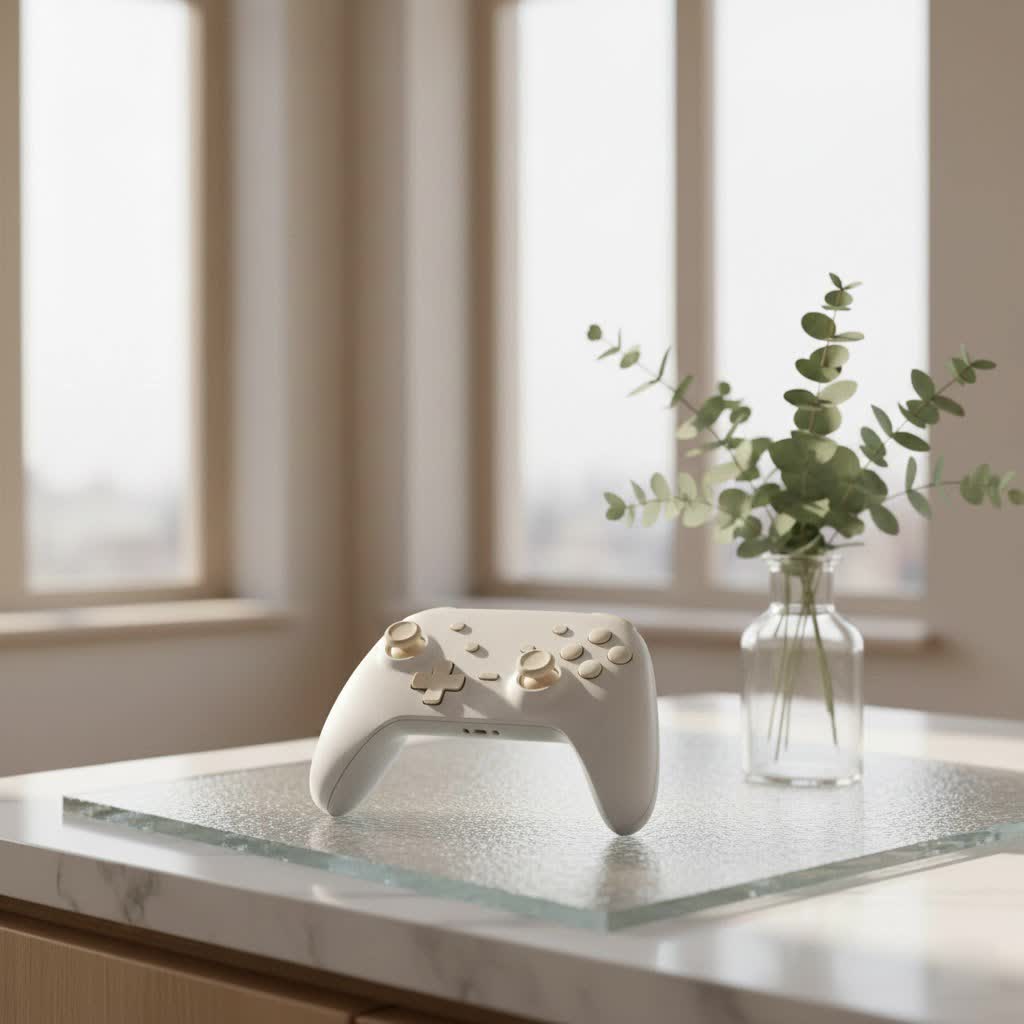
The Xbox One wireless controller isn’t just a peripheral; it’s an extension of your will in the virtual world. Understanding its intricacies, from the initial pairing to keeping it running smoothly, is key to an uninterrupted gaming experience. Whether you’re a casual gamer or a competitive pro, mastering your controller’s wireless capabilities will elevate your play.
Getting Started: Pairing Your Xbox One Wireless Controller
Connecting your Xbox One wireless controller to your console is usually a straightforward process, but knowing the exact steps can save you a lot of head-scratching. Think of it like a handshake between two very important pieces of tech!
Step-by-Step Console Connection
The most common way to get your Xbox One wireless controller talking to your console is through the dedicated sync buttons. Here’s how you do it:
- Power Up Your Controller: First things first, ensure your Xbox One wireless controller has fresh AA batteries or a fully charged rechargeable battery pack. A common culprit for connection issues is simply a lack of juice. Press and hold the Xbox button (the glowing logo in the center) on your controller until it lights up and starts to flash slowly. This indicates it’s powered on and actively looking for a connection.
- Locate the Sync Buttons:
- On Your Xbox One Console: The sync button is a small, circular button. On the original Xbox One, it’s typically on the left side, near the disc drive. For the Xbox One S and X, it’s on the front, usually below the power button.
- On Your Xbox One Controller: You’ll find a similar small, circular sync button on the top edge of the controller, nestled between the bumper buttons (LB/RB) and near the Micro-USB port.
Our Picks for the Best Game Controller in 2026As an Amazon Associate I earn from qualifying purchases.Num Product Action 1 Spican Switch 2 Controller, Switch 2 Accessories Wireless Pro Controller with No-drift Hall Effect Joystick, 4 RGB Mode, 10H+ Battery, Turbo&Macro, Full-Size Hand-Curve Design Comfort for Nintendo Switch 2 Games 
2 8BitDo Ultimate 2 Wireless Controller for Windows PC, Apple, Steam & Android, Gaming Controller with TMR Joysticks, Hall/Tactile Triggers, Motion Control, RGB Fire Ring, 1000Hz Polling Rate, Black
3 VOYEE Switch Controllers Compatible with Switch/Lite/OLED/PC Windows, 1000mAh Programmable RGB Lightning LED, Wireless Pro Controller with One Key Pairing/Wake Up/Turbo/Vibration
4 AceGamer Aurora II 2.4G Wireless Bluetooth Controller for PC/Android/Switch/iOS/Switch 2/Steam Deck with Rotary Motors, RGB Hall Effect Joysticks - Upgraded PC Gaming Controller and Back Buttons Lock
5 Logitech G F310 Wired Gamepad Controller Console Like Layout 4 Switch D-Pad PC - Blue/Black
6 Xbox Elite Series 2 Core Wireless Gaming Controller – White Series X-S, One, Windows PC, Android, and iOS
7 PlayStation DualSense® Wireless Controller - Midnight Black
8 8BitDo Ultimate 2C Wireless Controller for Windows PC and Android, with 1000 Hz Polling Rate, Hall Effect Joysticks and Triggers, and Remappable L4/R4 Bumpers (Green)
9 EasySMX X15 PC Controller - Enhanced Wireless Bluetooth Controller with Hall Joysticks/Hall Triggers/RGB Lighting - No Stick Drift, No Dead Zone - Work for Windows PC, Android, Steam and Switch
10 ManbaOne Interactive Screen Wireless Gaming Controller for PC/Switch/Switch 2/iOS/Android,Hall Effect Stick & Trigger,RGB Lighting,Remappable Buttons,1800mAh with Charging Dock (Black)
- Initiate Pairing: First, press and release the sync button on your Xbox One console. The console’s power button will start flashing. Within 20 seconds, press and hold the sync button on your Xbox One wireless controller. The Xbox button on your controller will start flashing rapidly.
- Confirm Connection: After a few moments, both the Xbox button on your controller and the console’s power indicator will stop flashing and remain solid. This means your controller is successfully paired and ready to go!
Connecting via USB (Initial Setup & Backup)
Sometimes, a wired connection is the quickest path to getting your controller recognized, especially for the initial setup or if you’re troubleshooting a wireless issue. “Using a USB cable is a fantastic fallback,” says Marcus Thorne, a seasoned Game Controller technician at Vntut.com. “It bypasses wireless interference and often resolves temporary glitches.”
Simply connect a Micro-USB cable from the front of your Xbox One wireless controller to one of the USB ports on your Xbox One console. Once plugged in, press the Xbox button on your controller, and it should immediately connect. This method is also crucial for updating your controller’s firmware.
PC and Mobile Connectivity: The Bluetooth Advantage
While initially designed for the Xbox console, many Xbox One wireless controllers can also connect to PCs and mobile devices. However, there’s a crucial distinction:
- Bluetooth-Enabled Controllers: If the plastic around the Xbox button on your controller is part of the controller’s main faceplate (seamless design), it likely supports Bluetooth. These controllers can connect directly to Windows PCs, Android devices, and iOS devices via their respective Bluetooth settings.
- Xbox Wireless (Proprietary) Controllers: Older Xbox One controllers, where the plastic around the Xbox button is a separate piece that only connects to the top edge, use Microsoft’s proprietary Xbox Wireless protocol. For these, you’ll need an Xbox Wireless Adapter for Windows to connect wirelessly to a PC. Without it, a USB cable is your only PC connection option.
Connecting via Bluetooth usually involves holding the controller’s sync button until the Xbox button flashes rapidly, then searching for “Xbox Wireless Controller” in your device’s Bluetooth settings and selecting it.
Unlocking Features: More Than Just Gaming
The Xbox One wireless controller is packed with features designed to enhance your gaming. It’s not just about movement; it’s about immersion and functionality.
Your Xbox One console can support up to eight Xbox One wireless controllers simultaneously, making it perfect for local multiplayer fun with friends and family. Each controller maintains its independent wireless connection, ensuring responsive input for every player. Beyond the basic controls, the integrated 3.5mm stereo headset jack allows you to plug in your favorite gaming headset for crystal-clear audio and voice chat, right from your controller. The immersive rumble feedback motors provide tactile responses to in-game actions, pulling you deeper into the experience, making every explosion feel real and every collision impactful.
Troubleshooting Common Wireless Woes
Even the most robust technology can have its off days. If your Xbox One wireless controller isn’t behaving as expected, don’t panic! Most issues are easily fixable.
“My Controller Isn’t Connecting!” (Blinking Light Syndrome)
A rapidly blinking Xbox button on your controller usually means it’s searching for a console but not finding one, or it’s experiencing a communication error. Here’s a troubleshooting checklist:
- Check Batteries: This is the number one culprit. Replace disposable AA batteries with fresh ones, or fully charge your rechargeable battery pack. A weak signal can often be traced back to low power.
- Re-Pair the Controller: Sometimes, the connection simply needs a refresh. Repeat the pairing process: press the sync button on your console, then on your controller.
- Power Cycle Console and Controller: A full restart can clear up temporary software glitches. Hold the Xbox button on the front of your console for 10 seconds until it turns off completely. Unplug it from the wall for 30 seconds, then plug it back in and restart. Do the same for your controller by holding its Xbox button for 10 seconds to force it off, then press it again to turn it back on.
- Try a Wired Connection: As mentioned, connecting via a USB cable can help determine if the issue is with the wireless connection itself or the controller hardware. If it works wired, you know the controller is functional.
- Check for Interference: Other wireless devices (Wi-Fi routers, cordless phones, microwaves, even other Bluetooth devices) can interfere with the Xbox Wireless signal. Try moving closer to your console or temporarily turning off other wireless devices to see if the connection improves.
- Update Controller Firmware: Outdated controller firmware can cause connection stability issues. Connect your controller via USB, then navigate to
Settings > Devices & accessorieson your Xbox console (or use the Xbox Accessories app on PC) to check for and apply any available updates. This is a critical step often overlooked.
Keeping Your Controller Current: Firmware Updates
Controller firmware updates are like software updates for your game controller. They improve performance, fix bugs, and enhance compatibility with new games and system features. Regularly checking for these updates is crucial for optimal performance of your Xbox One wireless controller. You can easily do this by connecting your controller to your Xbox One console via USB and navigating to the Devices & accessories section in your console’s settings. Follow the on-screen prompts to apply any pending updates.
Pro Tips for Longevity and Performance
Your Xbox One wireless controller is an investment in your gaming enjoyment. Treat it right, and it will serve you well for years.
- Battery Management: If you use disposable batteries, consider switching to rechargeable battery packs. They’re more environmentally friendly and ensure you always have power when you need it. Always keep a spare set charged, or plug in your controller with a USB cable when not in use to maintain its charge.
- Cleanliness is Key: Dust, dirt, and grime can accumulate in the crevices of your controller, affecting button responsiveness and joystick movement. Use a soft, dry cloth and cotton swabs (lightly dampened with rubbing alcohol if needed) to keep your controller clean.
- Proper Storage: When not in use, store your Xbox One wireless controller in a safe place where it won’t be dropped, crushed, or exposed to extreme temperatures. This simple habit can prevent accidental damage and extend its lifespan.
Frequently Asked Questions (FAQ)
Q: Can I use an Xbox One wireless controller with an Xbox Series X/S console?
A: Yes, absolutely! Microsoft designed the Xbox Series X/S consoles with excellent backward compatibility for accessories, meaning most official Xbox One wireless controllers will work seamlessly with the newer consoles. You pair them using the same sync button method.
Q: How many Xbox One wireless controllers can I connect to my console at once?
A: Your Xbox One console supports connecting up to eight wireless controllers simultaneously. This is great for large multiplayer sessions with friends and family.
Q: My Xbox One controller keeps disconnecting wirelessly. What should I do?
A: First, check the battery level. If batteries are fine, try re-pairing the controller. Power cycling both your console and controller can often resolve intermittent disconnections. Also, ensure there are no strong wireless interferences nearby and that your controller’s firmware is up to date.
Q: How do I know if my Xbox One wireless controller has Bluetooth for PC connectivity?
A: You can identify Bluetooth-enabled controllers by looking at the plastic around the Xbox button. If this plastic is part of the controller’s main faceplate (a seamless look), it has Bluetooth. If the plastic is a separate piece only connecting to the top edge, it uses proprietary Xbox Wireless and requires a separate adapter for wireless PC connection.
Q: Is it important to update my controller’s firmware? How do I do it?
A: Yes, keeping your controller’s firmware updated is very important for performance, bug fixes, and compatibility. You can update it by connecting your Xbox One wireless controller to your console via a USB cable, then going to Settings > Devices & accessories and selecting your controller to check for updates.
Conclusion
Mastering your Xbox One wireless controller means unlocking a more immersive, comfortable, and reliable gaming experience. From the initial pairing steps to understanding its advanced features and confidently troubleshooting any hiccups, you now have the knowledge to maintain your controller like a true professional. By following these guidelines, you’ll ensure your Xbox One wireless controller remains a trustworthy companion in all your gaming adventures, always ready to deliver that seamless, untethered excitement. Now, go forth and game with confidence!
